
"My data looks stale" is one of the most common questions QuantWheel users ask. Good news: it's almost always one of three specific causes, and each has a clear answer. This page helps you identify which is happening and what to do about it.
Symptoms you might see
- A trade you placed hours or days ago hasn't appeared in your Journal
- Open Positions shows a position you've already closed
- GEX data shows a Sandbox label or a time delay when you expected real-time
- The P&L on a position hasn't updated since the last sync
- A broker shows as "connected" but the data feels out of date
Most likely cause
QuantWheel itself is real-time - the surfaces you see update within seconds of the underlying data changing. Delays come from three places upstream:
- Broker-specific data freshness windows. Some brokers release data to third parties with a built-in lag.
- The Sandbox is demo data with intentional delays. If you're on the free Sandbox, GEX is always delayed and positions are fake.
- QuantWheel's sync hasn't refreshed yet. Each broker syncs on a schedule; between syncs, your data is as-of the last successful sync.
How to diagnose
Step 1: Check if you're on the Sandbox
In the top bar, your plan badge shows which tier you're on. If it says Sandbox:
- Every position, transaction, and P&L number is demo data, not your real account
- GEX is intentionally delayed on the free tier
- Broker connection isn't available on the Sandbox, so there's no real-data sync happening
Fix: start a trial or subscribe. See How to start your $1 7-day trial.
Step 2: Check your broker's freshness window
Each supported broker has its own data delay. A few common ones:
- Fidelity has a 24-hour delay on positions and holdings. A trade made today won't appear in Open Positions until tomorrow.
- Most other SnapTrade brokers sync within 15-60 minutes of a trade, though individual brokers vary.
- Interactive Brokers (via Flex Query) syncs on the schedule you set when generating the Flex Query, typically daily.
Go to Settings → Broker Integration. Each connected broker card shows its last sync time. If the last sync was within the broker's normal window, the data is as-current as it gets - waiting is the fix.
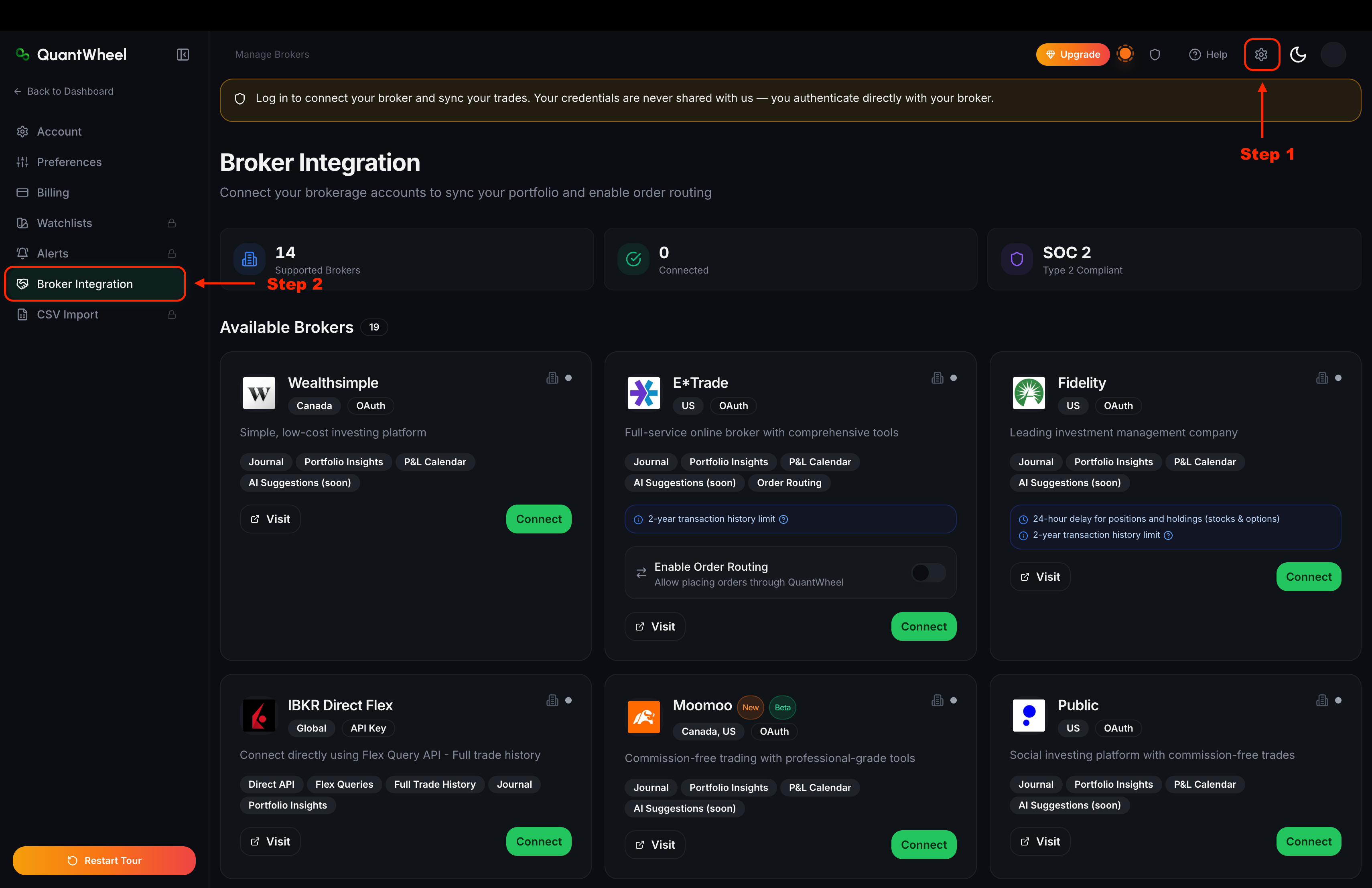
Step 3: Force a re-sync
If the sync time shown is older than the broker's typical window, click the Resync button. This runs on most Journal pages (top-right on Profit View) and on the Broker Integration page itself. Resync triggers an immediate pull from the broker's API rather than waiting for the next scheduled sync.
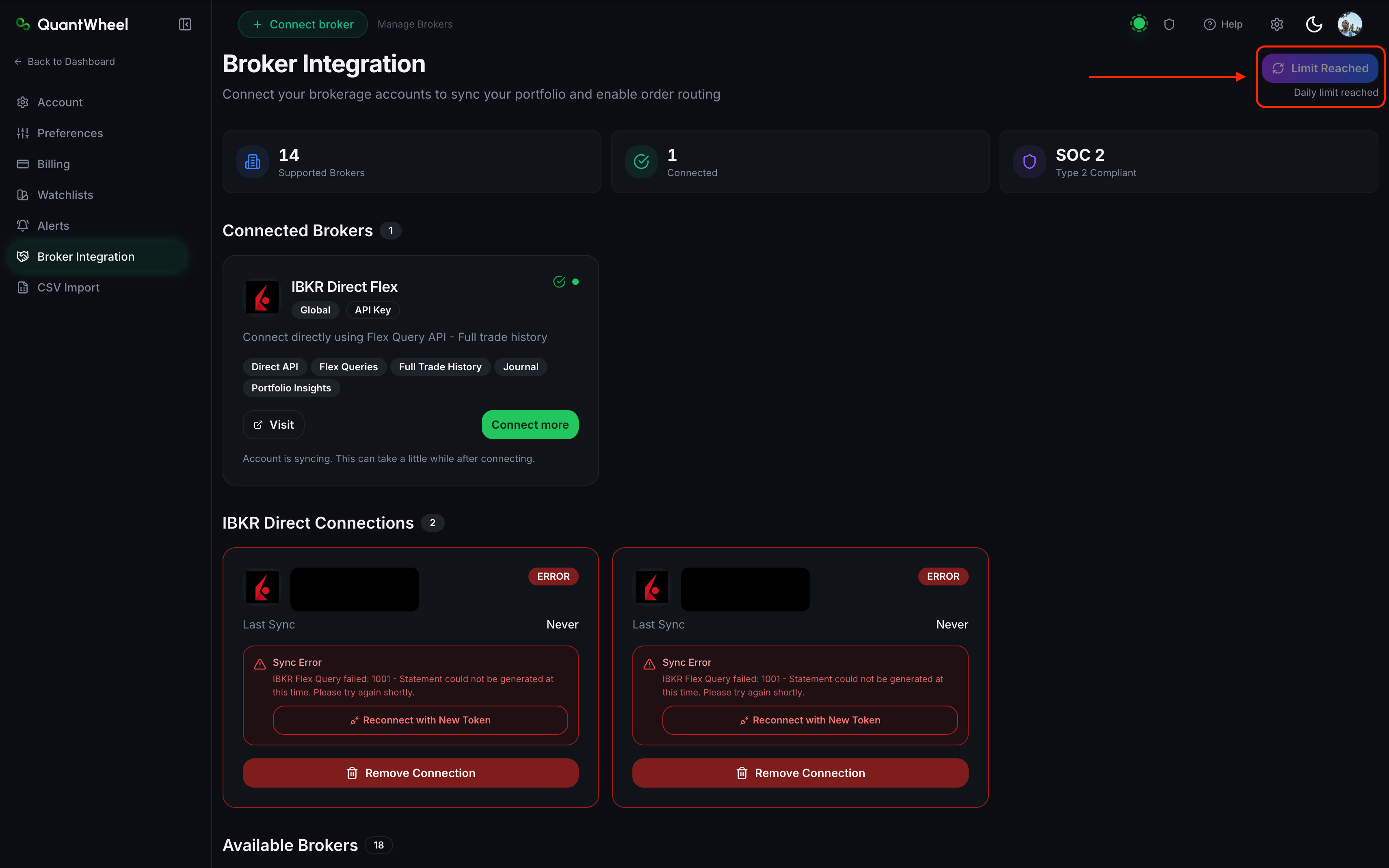
Step 4: Check for a sync error
If Resync doesn't bring in new data, the sync may be failing silently. See Broker sync failed or stopped working for the full diagnostic flow.
How to fix
Based on which cause applies:
- Sandbox → upgrade to a paid plan; Sandbox data will never be live
- Broker delay (e.g., Fidelity 24h) → wait for the broker's next window
- Successful sync but old data → click Resync on the broker card
- Sync not progressing → go to Broker sync failed
If that doesn't work
If you've confirmed:
- You're on a paid plan (not Sandbox)
- Your broker's normal sync window has passed
- Resync doesn't bring in new data
- There's no sync error showing
...then the problem is likely broker-side - the broker's API may be temporarily unavailable or returning stale data to all third-party integrations. Check the broker's status page or try again in 15-30 minutes. If it persists for more than a few hours, report it via the Help link in the top bar and we'll investigate. The easiest way to reach out is via discord support tickets - we take these things seriously!