
Discord delivers QuantWheel alerts through a bot that posts into a channel on your server. When alerts stop arriving - or never arrived in the first place - the problem is almost always in the setup chain rather than on the alert itself. This page walks through the likely gaps.
Symptoms you might see
- An alert fires in QuantWheel (visible in the Alerts page) but nothing appears in Discord
- Setup said "Discord connected" but no welcome message ever posted
- Alerts were working, then stopped after you changed Discord permissions or server settings
- The QuantWheel bot shows as offline in your Discord member list
Most likely cause
The Discord setup has two steps. Most failures come from completing one and skipping the other:
- Authorization - you grant QuantWheel permission to act as a bot on Discord (done through Discord's OAuth)
- Adding the bot to your server and giving it channel access - the bot needs to actually be present in a channel where it can post
Step 1 alone doesn't deliver messages anywhere. Step 2 is what makes alerts visible. If alerts are completely absent, step 2 is usually incomplete.
Other causes, in rough frequency order:
- Bot was added to a server but not given permission to post in any channel
- Your Discord server's moderation rules are silently blocking bot messages
- Discord itself is experiencing an outage (check status.discord.com)
How to diagnose
Step 1: Confirm the discord connection
Go to Settings → Account. Check if you have a "disconnect discord" button. That means you did step 1 correctly.
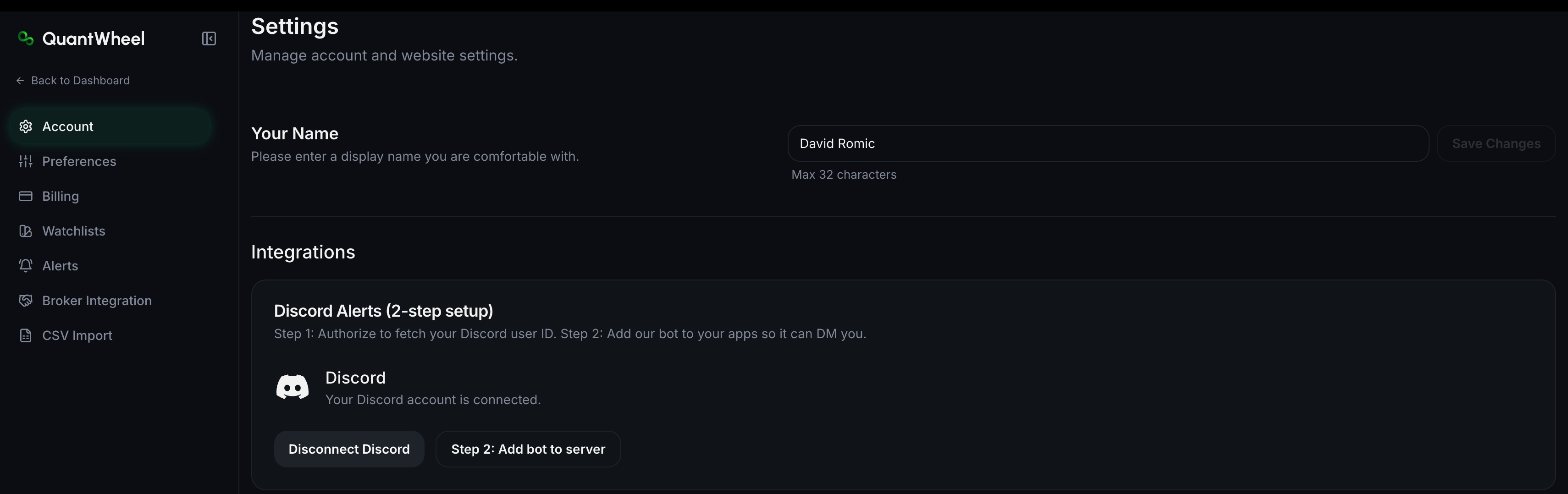
Step 2: Confirm the bot is in your Discord server
Open Discord. In your server, click Members (usually a person icon near the channel list). Search for the QuantWheel bot.
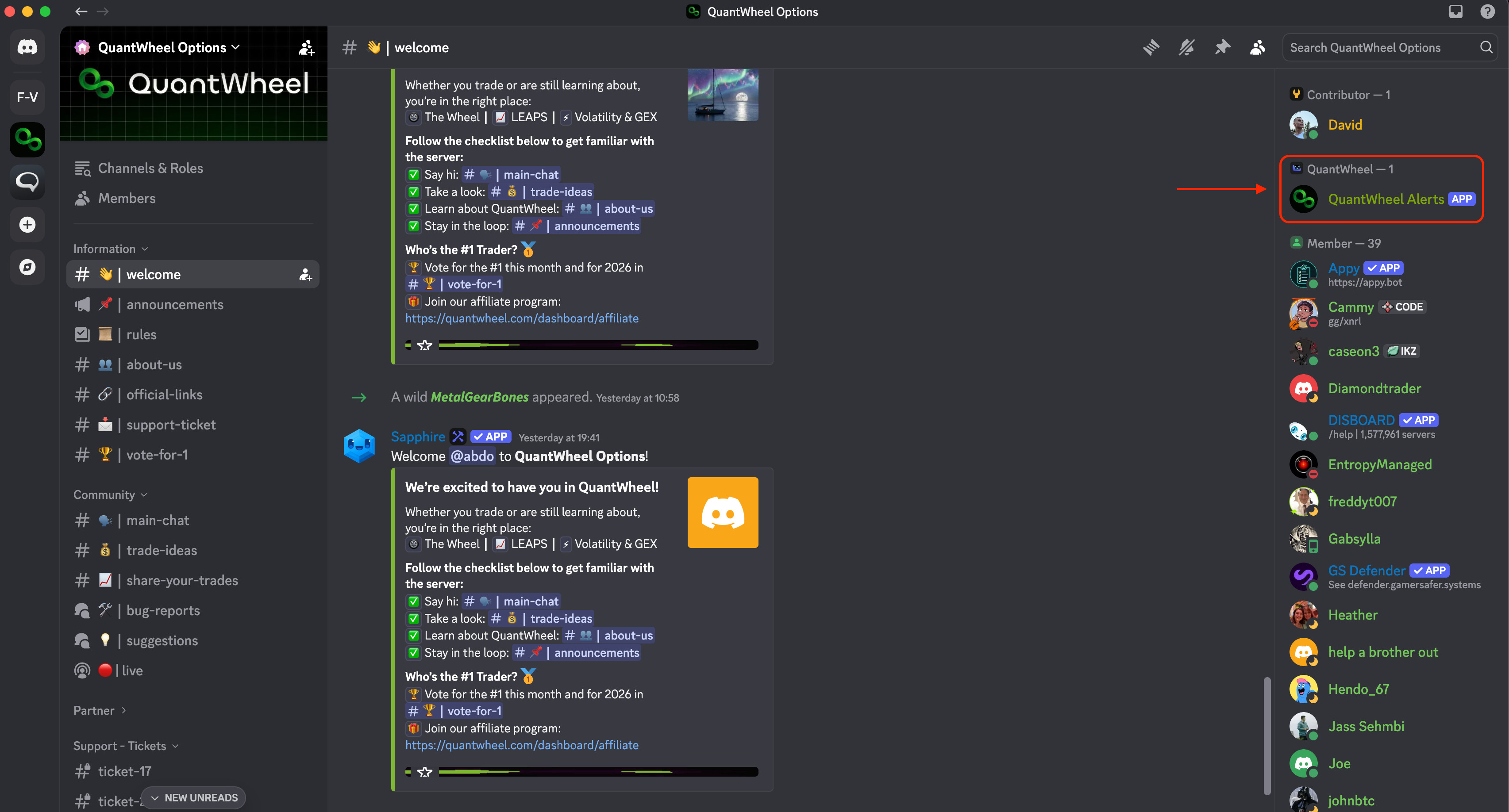
- Bot is present - authorization step is done and bot is in the server. Go to Step 3.
- Bot is not in the member list - authorization succeeded on the QuantWheel side but the bot was never added to a server.
Go to Settings → Account → Integrations → Discord in QuantWheel and re-run the setup flow. This time, complete the "Add Bot to Server" step when prompted.
Step 3: Check the bot's channel permissions
In Discord, right-click the channel where alerts should post. Click Edit Channel → Permissions. Find the QuantWheel bot (or the role it's assigned to) and confirm it has at least:
- View Channel
- Send Messages
- Embed Links (needed for the formatted alert cards)
If any of these are off, turn them on. Alerts should post on the next firing.
Step 4: Check server-wide bot blocking
Some Discord servers have strict moderation bots or rules that block messages from newer bots:
- AutoMod filters can silently delete bot posts that match certain criteria
- Paid security bots like MEE6 or Dyno sometimes rate-limit or mute unfamiliar bots
- If the server has a "bot quarantine" or "unverified bot" role, the QuantWheel bot may have been assigned to it
Ask your server admin (or yourself, if you own the server) to allowlist the QuantWheel bot.
Step 5: Check Discord status
If steps 1-4 are all fine and alerts still aren't arriving, check status.discord.com. Discord occasionally has API issues that affect bot message delivery specifically while the rest of the app looks fine.
How to fix
Most common fixes, in order of how often each works:
- Complete the bot-to-server add (step 2 of setup)
- Grant Send Messages + Embed Links permission in the target channel
- Allowlist the bot if your server has moderation blocking unfamiliar bots
- Wait out a Discord outage if status.discord.com shows issues
For each, the flow is in the diagnosis steps above.
If that doesn't work
If:
- The alert confirms it fired in QuantWheel
- The bot is in your server with correct channel permissions
- Server moderation isn't blocking it
- Discord's status page is green
...and alerts still aren't arriving, the integration itself may have become stale. Try:
- Disconnect Discord from Settings → Account → Integrations → Discord
- Re-authorize from scratch
- Complete both steps (authorize, then add bot to server)
- Test with a low-threshold alert to verify delivery
If that also fails, report via the Help link with the alert name, approximate firing time, and confirmation that the bot is visible in your server.