
If broker sync has stopped bringing in new data, the cause is almost always one of four things: an expired OAuth token, an invalid Flex Query token (Interactive Brokers only), a broker-side outage, or an exhausted sync count for the day. This page walks you through diagnosing which one, in roughly 2 minutes.
Symptoms you might see
- A broker card on Settings → Broker Integration shows an error state or "Disconnected"
- The last sync time is older than expected, and Resync doesn't update it
- A new trade you placed isn't appearing in Open Positions, Journal, or the Trade feed
- You see a red warning indicator on the broker card or in the top bar
- An error message like "Authentication failed" or "Sync failed - please reconnect"
Most likely cause
For one-click brokers (Fidelity, Schwab, Robinhood, and 10 others): the OAuth token your broker issued has expired or been revoked. This can happen after a password change, a broker security event, or simply because the token naturally timed out.
For Interactive Brokers: the Flex Query token has expired, or the Flex Query configuration was changed on the IBKR side.
For any broker: a broker-side outage or rate-limiting can block syncs temporarily.
For all brokers: you may have hit your daily sync count limit.
How to diagnose
Step 1: Check the broker card status
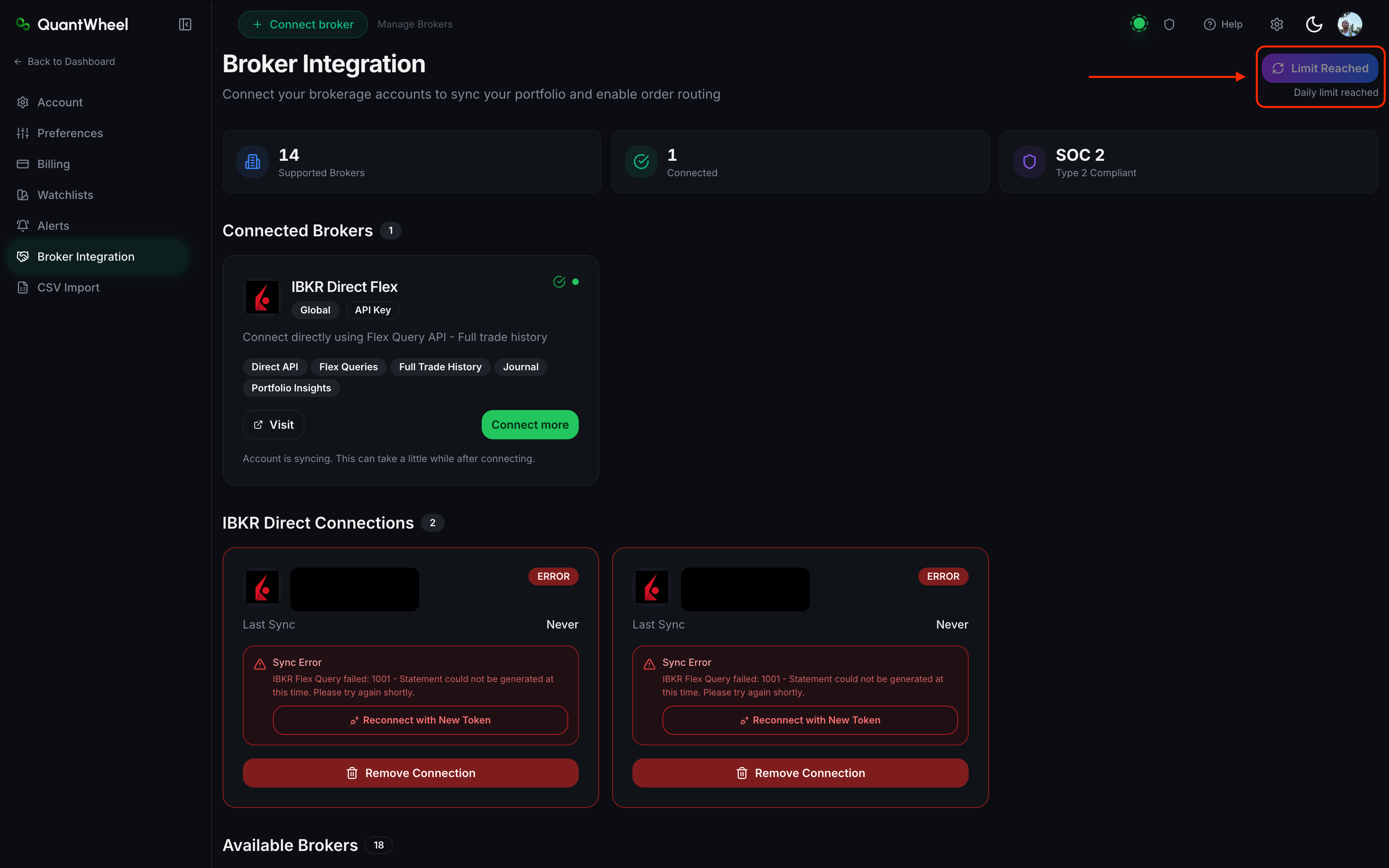
Go to Settings → Broker Integration (or click Manage Brokers in the top bar). Each connected broker shows a status label. Look for one of these:
- Connected / Syncing - sync is working; if you're still seeing stale data, see Why is my data delayed?
- Disconnected / Authentication failed - OAuth token expired; go to Step 2
- Sync error / Retrying - broker-side issue; go to Step 4
- Sync limit reached - daily sync count exhausted; see Sync count exhausted
Step 2: Re-authenticate a one-click broker
If your one-click broker shows Disconnected or Authentication failed:
- Click the Reconnect button on the broker's card
- The same authentication flow you did originally runs again - you'll be redirected to the broker's login page
- Log in with your current credentials and approve read-only access
- Return to QuantWheel. The broker card should now show Connected.
Historical imported data stays in the journal; reconnecting doesn't wipe it. New sync begins from the reconnection point forward.
Step 3: Rotate the IBKR Flex Query token
If Interactive Brokers shows an error:
- Log in to IBKR. Go to Performance & Reports → Flex Queries → Flex Web Service Configuration
- Generate a new token. Set Expire After: 1y/365 days
- Back in QuantWheel, disconnect IBKR from Settings → Broker Integration
- Reconnect using the original Query ID and the new token
Full setup steps: How to connect Interactive Brokers.
Step 4: Check broker-side status
If the broker card shows a sync error but the Reconnect flow succeeds immediately and then fails again within minutes, the broker's API is likely having a temporary problem.
- Visit the broker's status page (most brokers have one) to confirm
- Wait 15-30 minutes, then try Resync
- If the issue persists for more than a few hours, it's worth reporting via the Help link
Step 5: Verify the sync count
Free and paid tiers have different daily sync allowances. If you've hit the limit, Resync won't work until the counter resets (typically at midnight UTC).
See Sync count exhausted for how to check and raise the limit.
How to fix
In most cases, the fix is one of:
- OAuth-broker reconnection (one-click brokers)
- Flex Query token rotation (IBKR)
- Waiting out a broker-side outage
- Waiting for the sync counter to reset
For each, the flow is described in the diagnosis steps above.
📸 SCREENSHOT: broker-sync-failed-step-4.png
If that doesn't work
If you've:
- Reconnected the broker successfully (status shows Connected)
- Triggered Resync with sync counts remaining
- Confirmed the broker's API is operational
...and the data still isn't coming in, the issue is likely a specific broker-account edge case. Common ones:
- Multiple brokerage accounts under one login - QuantWheel may have connected to the wrong sub-account. Check which account is listed on the broker card; if it's the wrong one, disconnect and reconnect, selecting the correct account during the approval step.
- Account type not supported - a few brokers restrict API access on certain account types (IRAs, managed accounts, international accounts). The broker's authorization flow may succeed but return no data. Contact your broker to confirm third-party access is enabled on the account.
- Broker-side data delay - see Why is my data delayed?.
If none of these apply, report via the Help link in the top bar with a screenshot of the Broker Integration page. The Support team can inspect sync logs.