
If you're looking at the Journal and a specific trade isn't showing up, or a P&L figure doesn't match what your broker reports, the cause is usually one of four specific things. This page walks through diagnosing each.
Symptoms you might see
- A trade you placed doesn't appear on the Trades, Transactions, or Calendar tabs
- Your broker statement shows a realized P&L that differs from QuantWheel's
- A roll transaction appears as two separate trades instead of one chain event
- An assigned position's shares aren't in Open Positions after expiration
- Per-Ticker performance numbers don't match the sum of individual trades you remember
Most likely cause
Four common causes, in rough order of frequency:
- Sync hasn't completed - the broker hasn't sent the trade yet, or QuantWheel hasn't processed it
- Stock split or corporate action - the broker sent the data but QuantWheel couldn't match it to the pre-split position
- Roll categorization - a roll is technically two trades; one or both may appear unlinked
- Assignment missed - the broker didn't send an assignment event cleanly
How to diagnose
Step 1: Check the Trades tab
Start at Journal → Trades. This is the raw feed - if a trade exists anywhere in QuantWheel, it exists here first.
- Filter by the ticker and the date range of the missing trade
- Look for a row matching what you expect
If the trade is in Trades but not in Transactions: it synced successfully but the aggregate hasn't picked it up. This usually resolves within a sync cycle; if it persists beyond 24 hours, flag it via the Help link.
If the trade isn't in Trades at all: the broker sync missed it. Go to Step 2.
Step 2: Force a Resync
On the Trades tab, click Resync. This re-pulls from the broker's API. Many "missing" trades appear after a Resync because the trade happened between scheduled syncs.
If Resync doesn't bring it in, the broker may not have the trade in its own API feed yet. Some brokers have a lag between execution and API availability - Fidelity in particular can be up to 24 hours.
Step 3: Check for a stock split or corporate action
If the missing trade is on a ticker that recently had a stock split, a ticker change, or a spinoff:
- Open the Per-Ticker tab
- Search for the ticker's current symbol AND the old symbol
- QuantWheel may have the trade under a different ticker than you expect
Splits sometimes cause the broker to re-issue data with a new internal ID, which QuantWheel can't always automatically link to the pre-split history. If you see split-related mismatches, report them via the Help link - we can manually reconcile.
Step 4: Check for a roll reported as separate trades
Rolls are technically two trades: a buy-to-close of the existing position and a sell-to-open of the replacement. QuantWheel usually links these into a single chain event, but sometimes the two legs come through in separate syncs far enough apart that the linkage is missed.
- On the Trades tab, look for the buy-to-close and sell-to-open on the same ticker within a few minutes of each other
- If both are present but unlinked, the aggregate views may show them as separate transactions instead of as a roll
This is a known edge case; the financial totals are still correct, just the categorization looks different. If it's causing confusion on the Calendar or Transactions view, use the Show Roll P&L / Exclude Roll P&L toggles to control visibility.
Step 5: Check for a missed assignment
At options expiration, if your CSP ended in the money, the assignment should produce two transactions in QuantWheel: the option expiring worthless (from QuantWheel's perspective) and the stock appearing in Open Positions at the strike price.
If the option is gone but the shares didn't appear, see Assignment not detected in my journal.
How to fix
Based on which cause applies:
- Sync lag → wait for the broker's next window or Resync
- Stock split / corporate action → report via Help link for manual reconciliation (these always behave different depending on the broker)
- Unlinked roll → usually cosmetic; verify dollar totals on Transactions; toggle Show Roll P&L to control display
- Missed assignment → see Assignment not detected in my journal
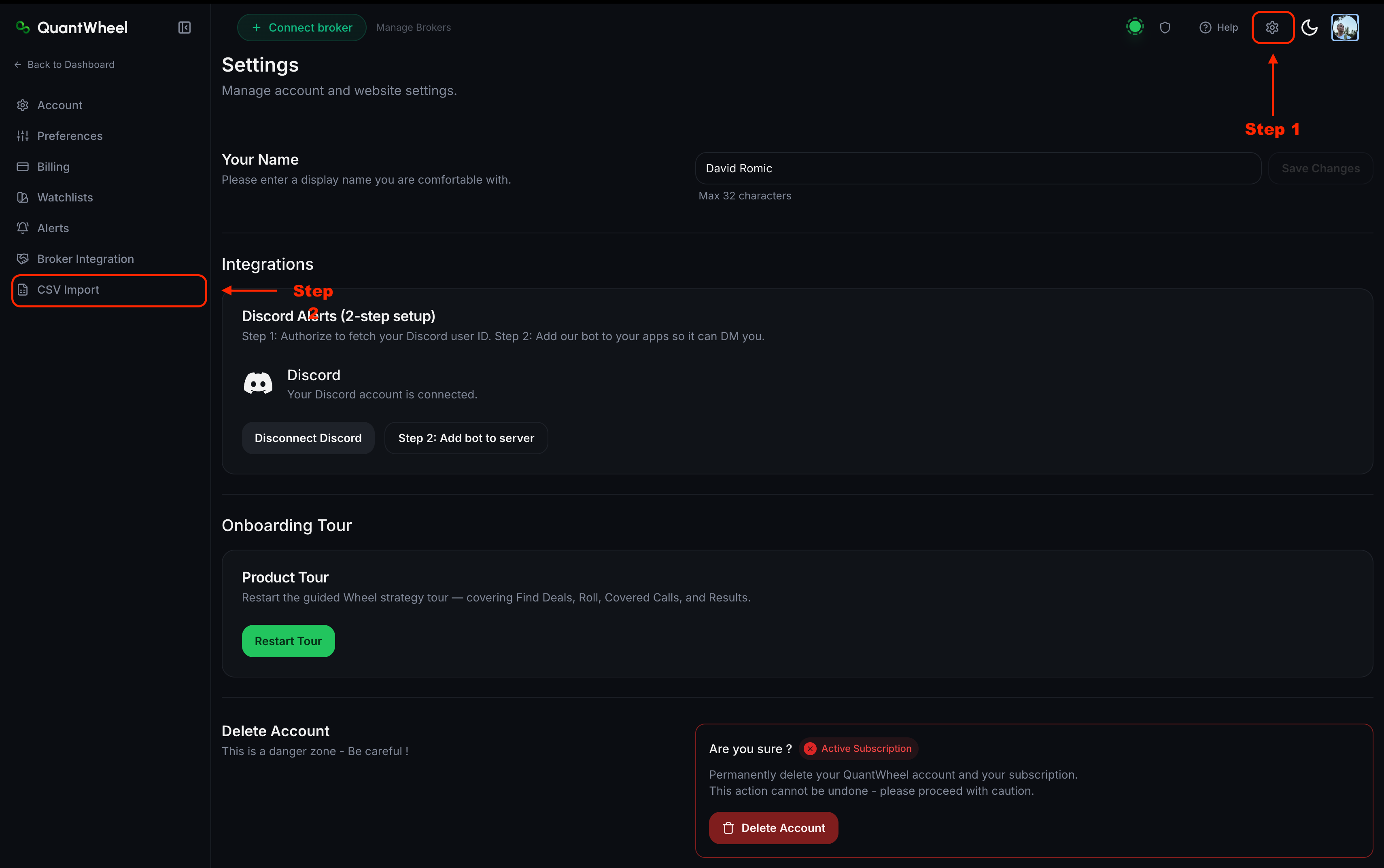
For any missing trade that auto-sync can't recover, the fallback is +Add Trade on the Trades tab (or CSV import via Settings → CSV Import for bulk) to manually enter it. Once entered, every aggregate view picks it up automatically.
If that doesn't work
If you've confirmed:
- The trade is not appearing in the raw Trades feed
- Resync doesn't pull it in
- There's no stock split or corporate action explaining the mismatch
- It's not a delayed assignment
...then the broker's API is likely not exposing this specific trade to third parties. Some account types (particularly certain retirement and managed accounts) restrict which trades the API returns.
Workaround: add the trade manually with +Add Trade, or bulk-import via CSV from your broker's statement export. Once imported, the journal aggregates include it the same as auto-synced trades.
If you think this is a QuantWheel-side issue rather than broker data restriction, flag it via the Help link with the specific ticker, date, and expected trade details.