
Discord delivery sends QuantWheel alerts to a channel on your Discord server through a bot. Setup is a 2-step flow: first authorize the integration so QuantWheel knows your Discord identity, then add the QuantWheel bot to your server and grant it permission to post. Both steps are required - alerts don't deliver until both are done.
Before you start
Required:
- A QuantWheel account on any tier (Discord delivery is available on all plans).
- A Discord account.
- A Discord server you own or have permission to add bots to. (Can't use a server where you're not an admin.)
Time to complete: 5 minutes
Steps
Step 1: Open the Discord integration settings
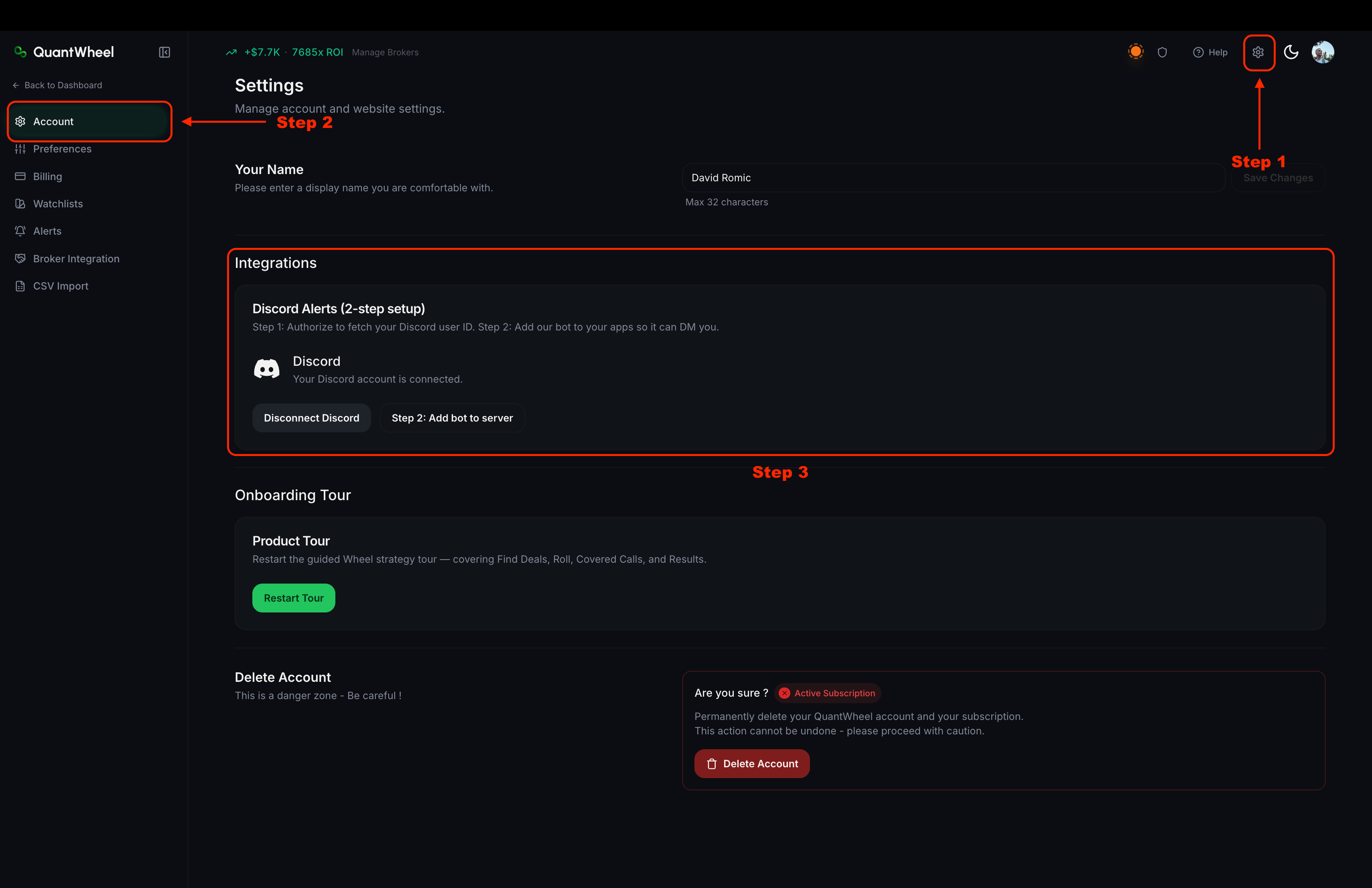
In QuantWheel, go to Settings → Account → Integrations. Find the Discord section.
Step 2: Authorize QuantWheel to access your Discord identity
Click Authorize Discord. You're redirected to Discord's OAuth consent screen. Discord shows you the permissions QuantWheel is requesting - typically the ability to read your user ID and username, so the bot can identify you correctly.
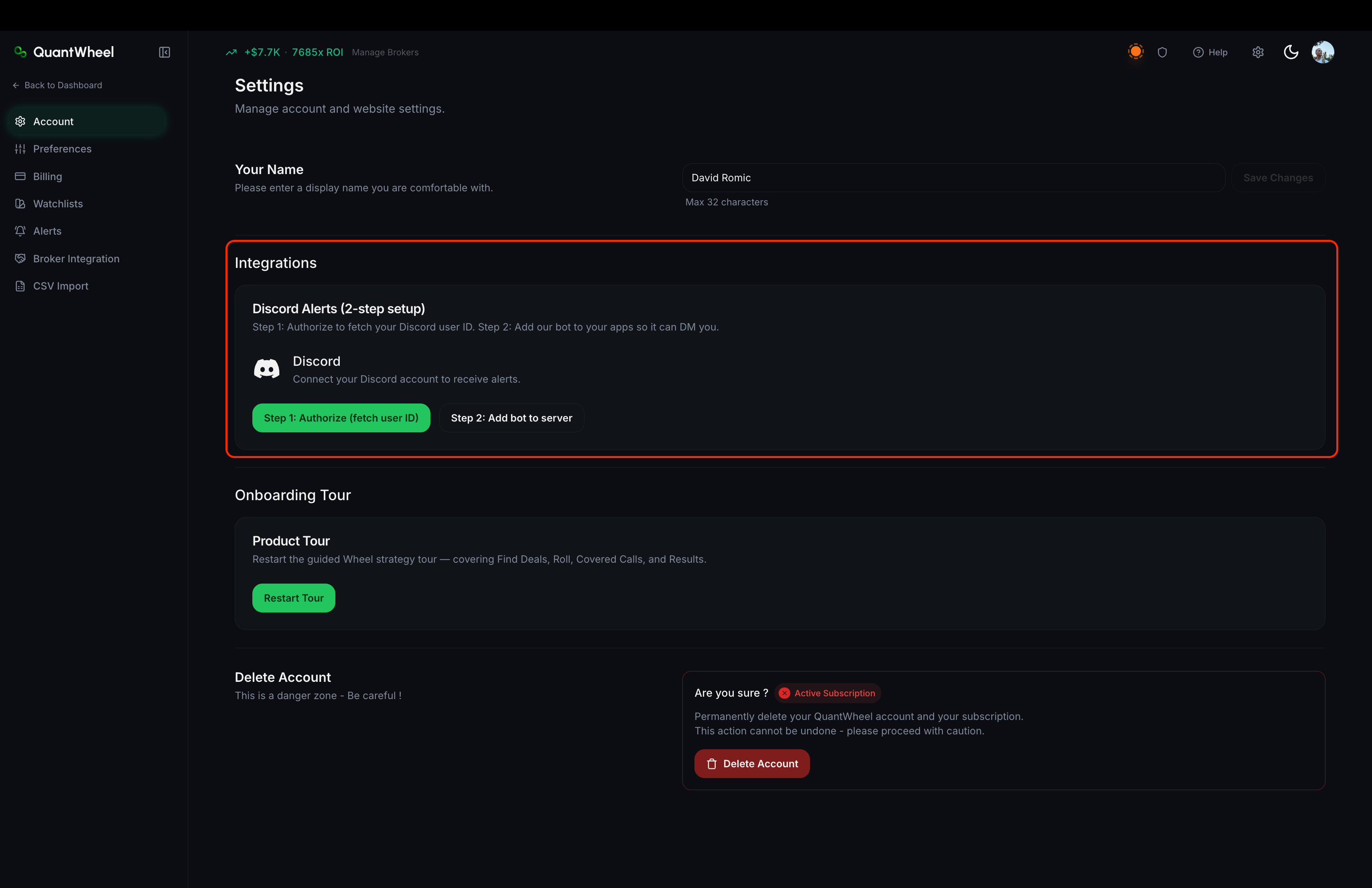
Click Authorize. You're returned to QuantWheel. The Discord section now shows your Discord username and a green "Authorized" state. In previous picture you can also see "Disconnect Discord" button now. That's another way of knowing that you're connected.
This is step 1 of 2. Authorization alone does not deliver alerts anywhere. You also need to add the bot to a server. Once you click to add a bot to server, you're asked to login.
Step 3: Add the QuantWheel bot to your Discord server
Still on the Discord integration settings, click Add Bot to Server. You're redirected to Discord's bot invite flow.
Discord asks which server to add the bot to - pick from your server list. Then Discord shows you the permissions the bot is requesting:
- View channels
- Send messages
- Embed links
- Read message history (for threading and reply features)
Approve the permissions and click Authorize. The bot is now in your server's member list.
Step 4: Pick a channel and verify bot access
In Discord, open the server you just added the bot to. Decide which channel you want QuantWheel alerts to post in - most users create a dedicated channel like #quantwheel-alerts.
Right-click the chosen channel and open Edit Channel → Permissions. Confirm the QuantWheel bot (or its assigned role) has:
- View Channel
- Send Messages
- Embed Links
If the bot inherits channel defaults from the server role, the permissions should already be correct. If the channel has custom permissions, you may need to explicitly grant these.
Step 5: Set the default alert channel in QuantWheel
Back in QuantWheel (Settings → Account → Integrations → Discord), you should now see:
- Your Discord username
- A list of servers the bot is in
- A channel picker for each server
Pick the channel where you want alerts to post.
This becomes the default for every Smart Alert you create that has Discord delivery enabled. Individual alerts can override this default.
Click Save.
📸 SCREENSHOT: setup-discord-alerts-step-4.png
If the you experience problems see Discord alerts not arriving.
How to disconnect
If you want to remove Discord integration:
- In QuantWheel, go to Settings → Account → Integrations → Discord. Click Disconnect. QuantWheel stops sending alerts to Discord.
- In Discord, open your server's settings and remove the QuantWheel bot from the member list. This revokes the bot's access.
You can also do step 2 without step 1 - kicking the bot from Discord stops delivery even if the QuantWheel side still shows "connected."
Common issues
I don't see my server in the server-picker dropdown.
The bot is only listed for servers where you explicitly added it. If you authorized Discord but skipped the Add Bot to Server step, no servers will show up. Go back and complete the Add Bot step.
I added the bot but it's not posting messages.
Almost always a channel permissions issue. See Discord alerts not arriving for the full diagnostic flow.
Can I send alerts to a DM instead of a server channel?
QuantWheel's Discord integration is server-based, not DM-based. If you want personal-only alerts, create a private server with just yourself and use a channel there.
Can I send different alerts to different channels?
Yes. The default channel set on Settings → Account → Integrations → Discord applies to Smart Alerts by default, but each alert's delivery configuration can override this with a different channel in the same server.
Do I need to create a new Discord server for QuantWheel, or can I use an existing one?
Either works. Most users add the bot to a server they already use - typically a trading-related server where they already spend time.