
The GEX Workspace lets you build a custom dashboard combining widgets from any of the GEX tools into a single view. Up to 20 widgets on paid plans, each individually configurable. If you monitor 3 tickers across 2 timeframes each, a Workspace saves you from bouncing between 6 different tabs every few minutes.
Before you start
Required:
- QuantWheel GEX or QuantWheel PRO subscription. Sandbox is limited to 1 widget, which is enough to try the feature but not to actually use it.
- Familiarity with the GEX tools you want to combine (GEX AI, Heatmap, Max Pain, etc.). See each tool's how-to if you're new.
Time to complete: 5 minutes for a first setup; ongoing tuning as your trading needs change.
Steps
1. Open the Workspace tab
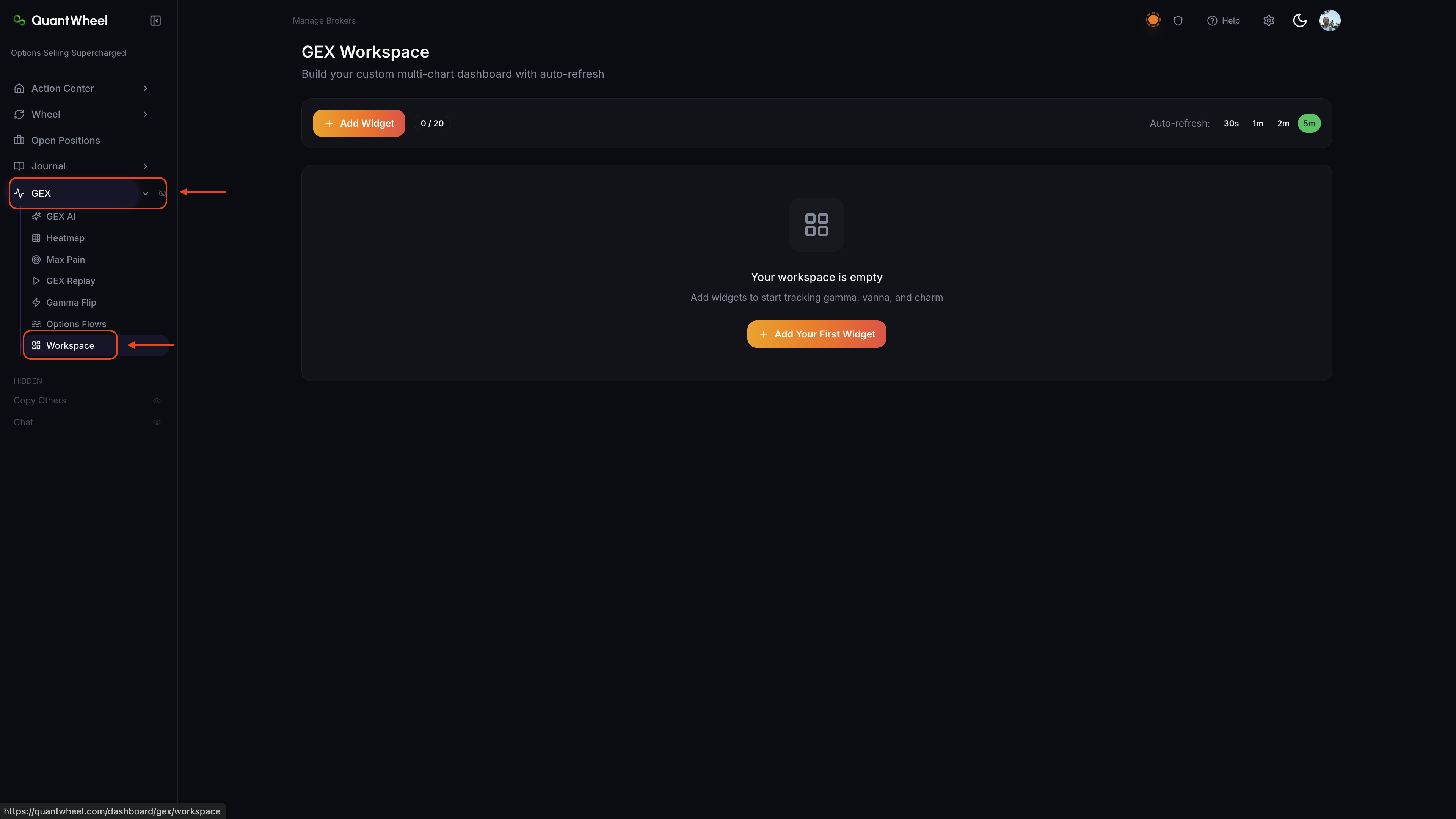
In the sidebar, open GEX → Workspace.
The workspace starts empty on first use. An + Add Widget button (or "+") opens the widget picker.
2. Add your first widget
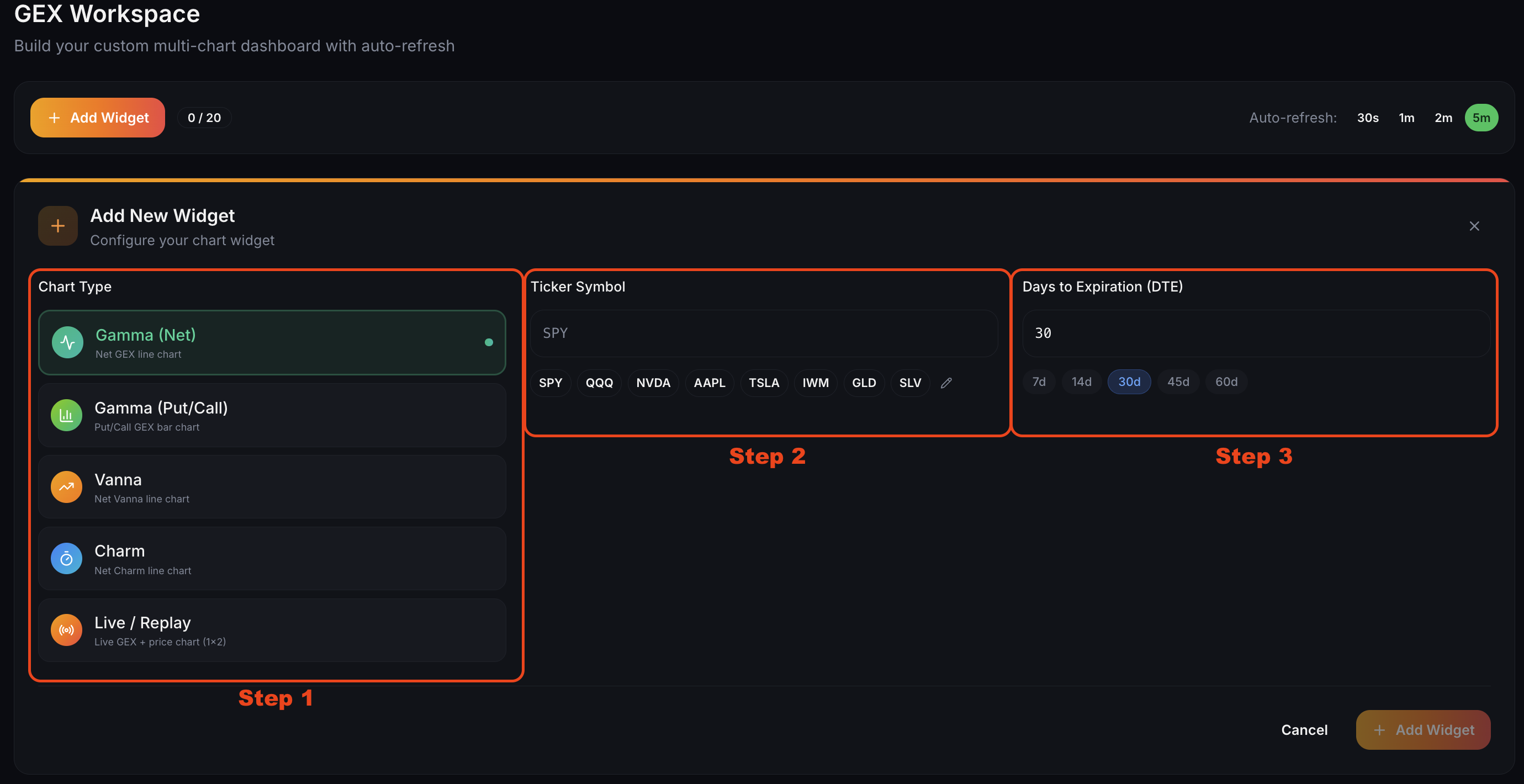
Click + Add Widget. A picker appears with the available widget types:
- Gamma (Net) — Net GEX line chart
- Gamma (Put/Call) — Put/Call GEX bar chart
- Vanna — Net Vanna line chart
- Charm — Net Charm line chart
- Live / Replay — Live GEX + price chart (1x2)
For each widget, you'll pick the specific ticker and parameters (e.g., expirations for GEX AI, date for Replay).
3. Set the auto-refresh interval
Above the widget canvas, an auto-refresh selector offers these intervals:
- 30 seconds — most responsive; use for active intraday trading
- 1 minute — reasonable default for most sessions
- 2 minutes — reduces visual noise; good for swing-style monitoring
- 5 minutes — low-frequency updates; good for passive monitoring or if you're working alongside
Each widget refreshes on the selected interval. Individual widgets may have per-widget refresh settings for finer control.
5. Save your layout
Workspaces save automatically per account. Leaving and returning to the page loads your last configuration.
For multiple layouts (e.g., one for SPY-focused sessions, one for broad-scan sessions), you may be able to save named layouts — check for a layout picker near the top of the workspace.
Common issues
The workspace shows blank widgets after page refresh.
Rare, but if it happens, a full page reload (not just tab switch) typically rebuilds the widgets. If widgets keep failing to load, check your connection and verify your plan tier still grants GEX access.
I'm on Sandbox and can only add one widget.
Correct — Sandbox limits workspaces to 1 widget as a preview. Paid plans remove this cap. See Understanding QuantWheel plans.
I hit the 20-widget cap on a paid plan.
20 is the current cap. If you regularly need more, consider splitting into multiple saved workspaces (a layout picker, if available, lets you switch between them).
Can I share a workspace layout with another user?
Not directly today. If you have a layout you think others would find useful, take a screenshot and describe the widgets — others can reconstruct manually.