
Once you've built a filter combination that reliably surfaces good candidates, you don't want to reconstruct it every time you screen. Find Deals lets you save filter combinations and load them in one click. This page explains how to save, load, rename, and delete saved filter sets, and how to use the community-shared Popular filters.
Before you start
Required:
- QuantWheel PRO, QuantWheel GEX, or an active $1 trial.
- Familiarity with the Find Deals layout. See How to use the Find Deals screener.
Time to complete: 3 minutes
What's on the screen
In the Find Deals sidebar, two sections handle saved filters:
- Your Searches - filter combinations you've saved yourself. Private to your account.
- Popular - filter combinations other QuantWheel users have chosen to share publicly. Read-only; you can't edit them directly but you can load and modify.
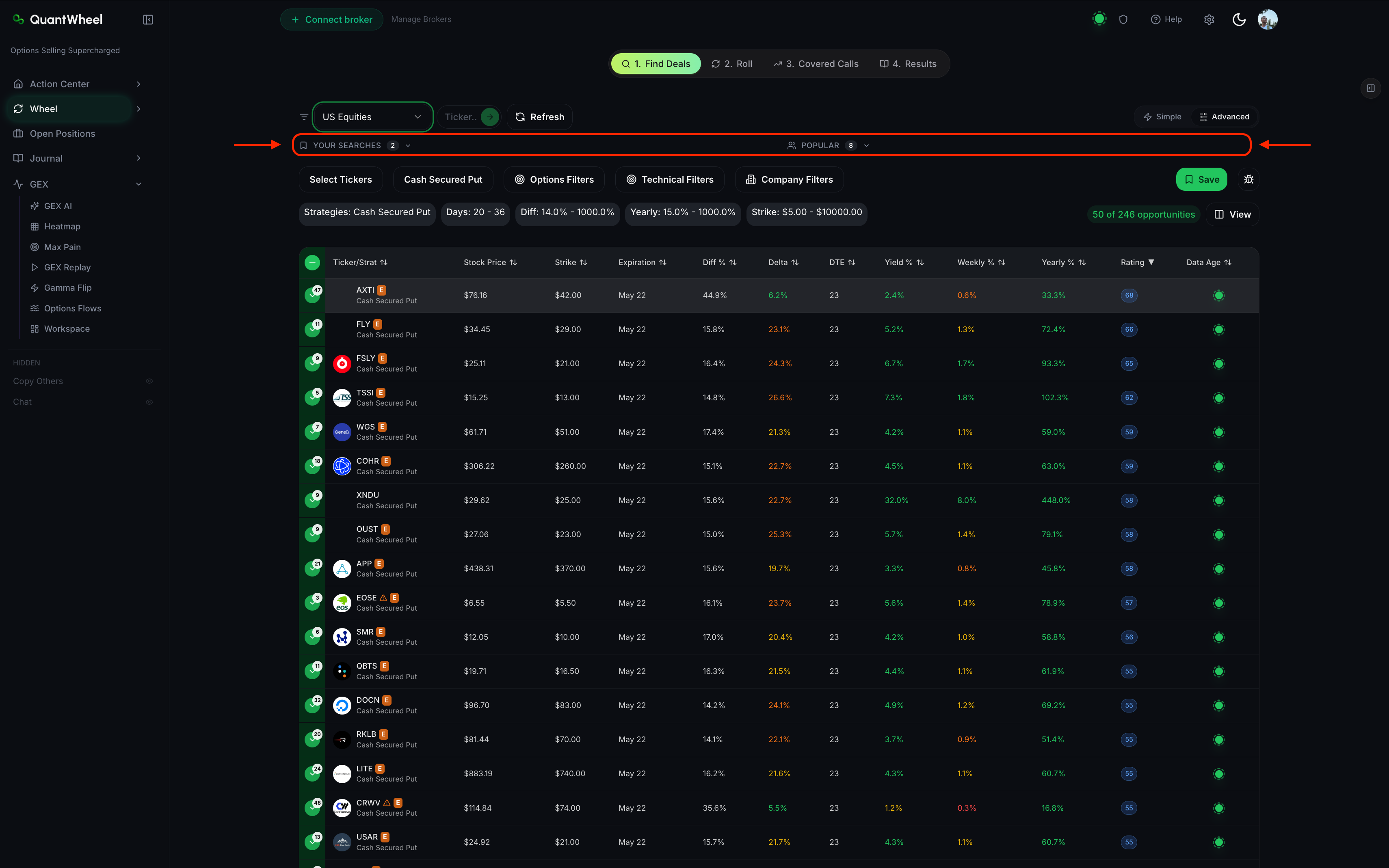
Once expanded:\

Steps
1. Save a filter combination
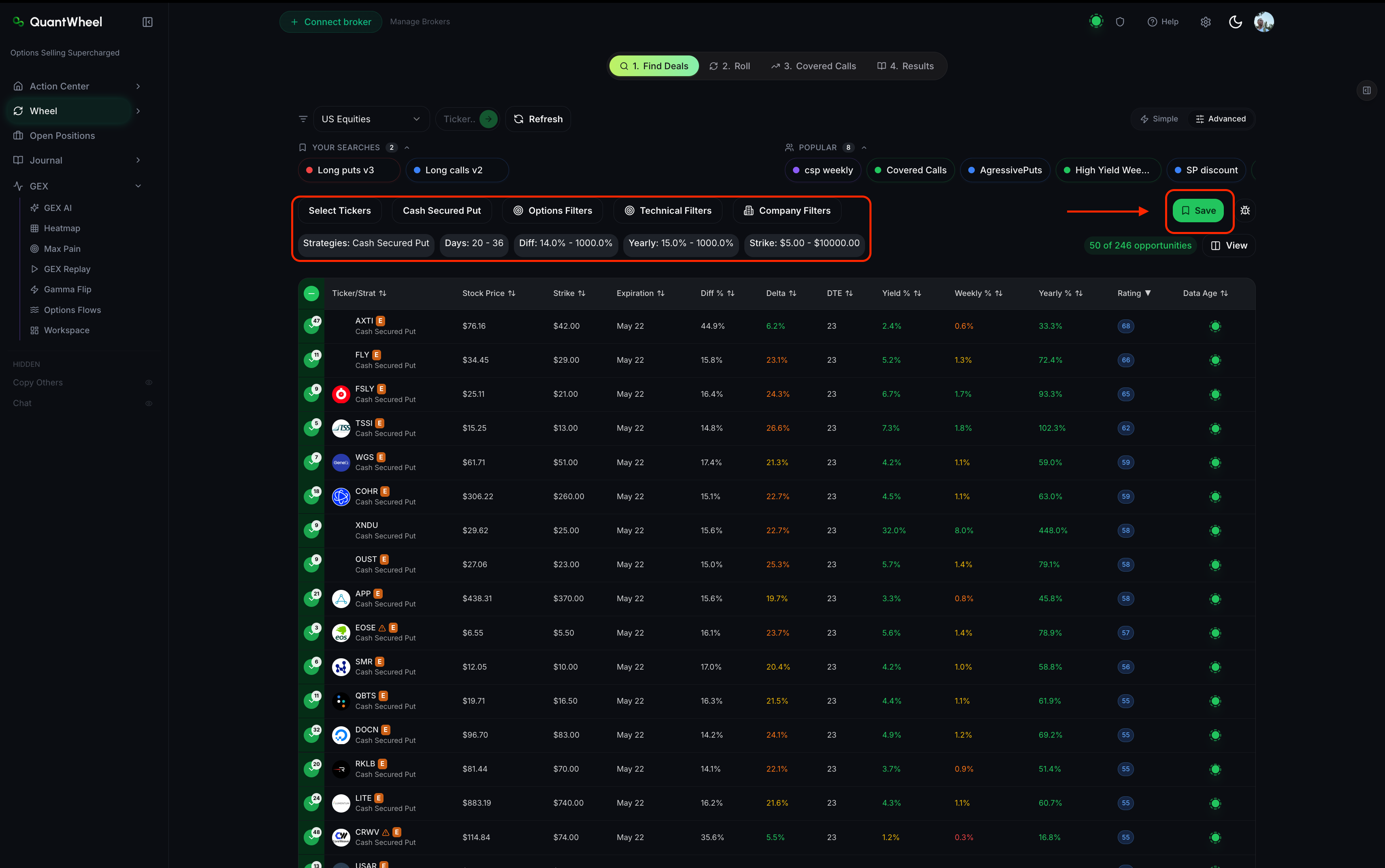
Build a filter set you like - set your Strategy, adjust the filters across Options, Technical, and Company groups until the results match what you want.
Click Save (or the save icon) in the Your Searches section. Save button is located on the right hand side.\
Popup will show up after you clicked "save".\
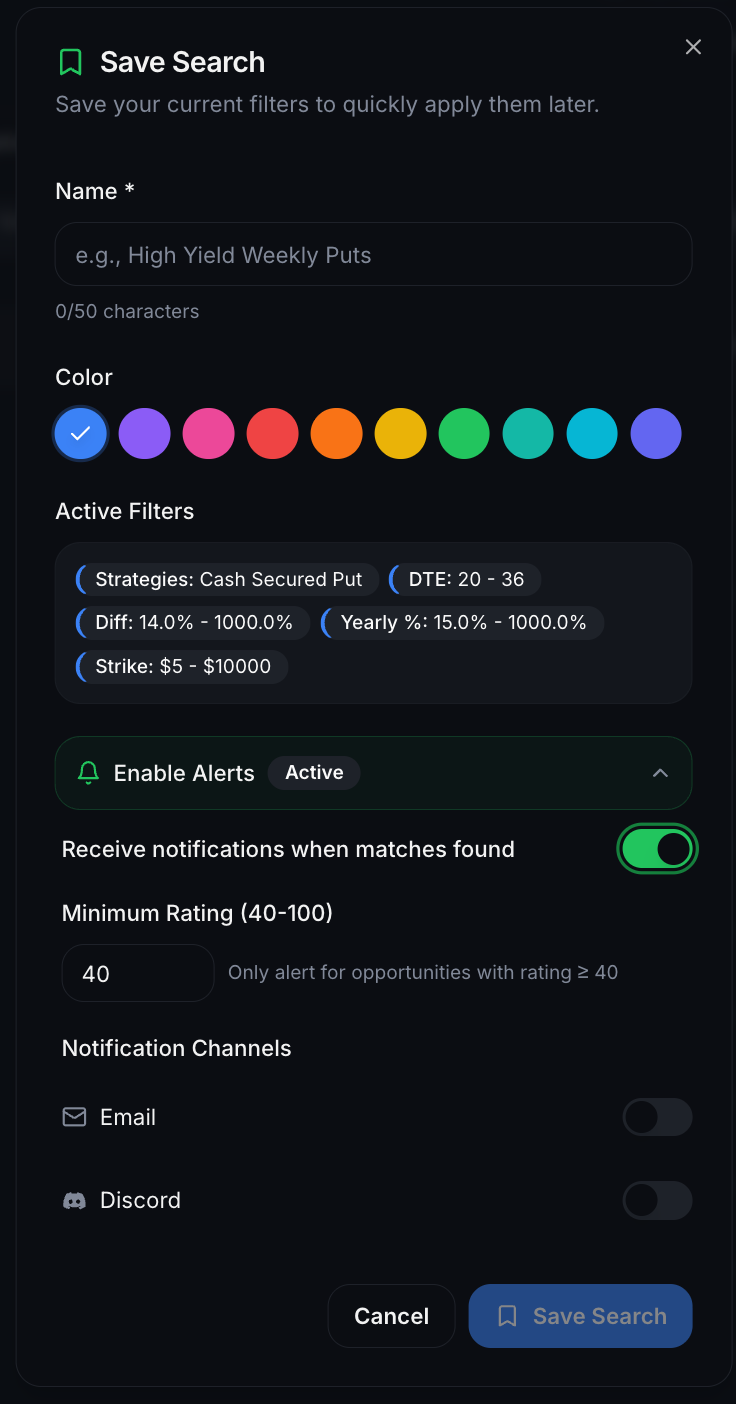
Give the filter set a short, descriptive name. Good names describe the setup: "Conservative 30-DTE blue-chip CSP" or "Oversold high-IV puts." Bad names are "Filter 1" and "test."\The saved filter now appears in "Your Searches".
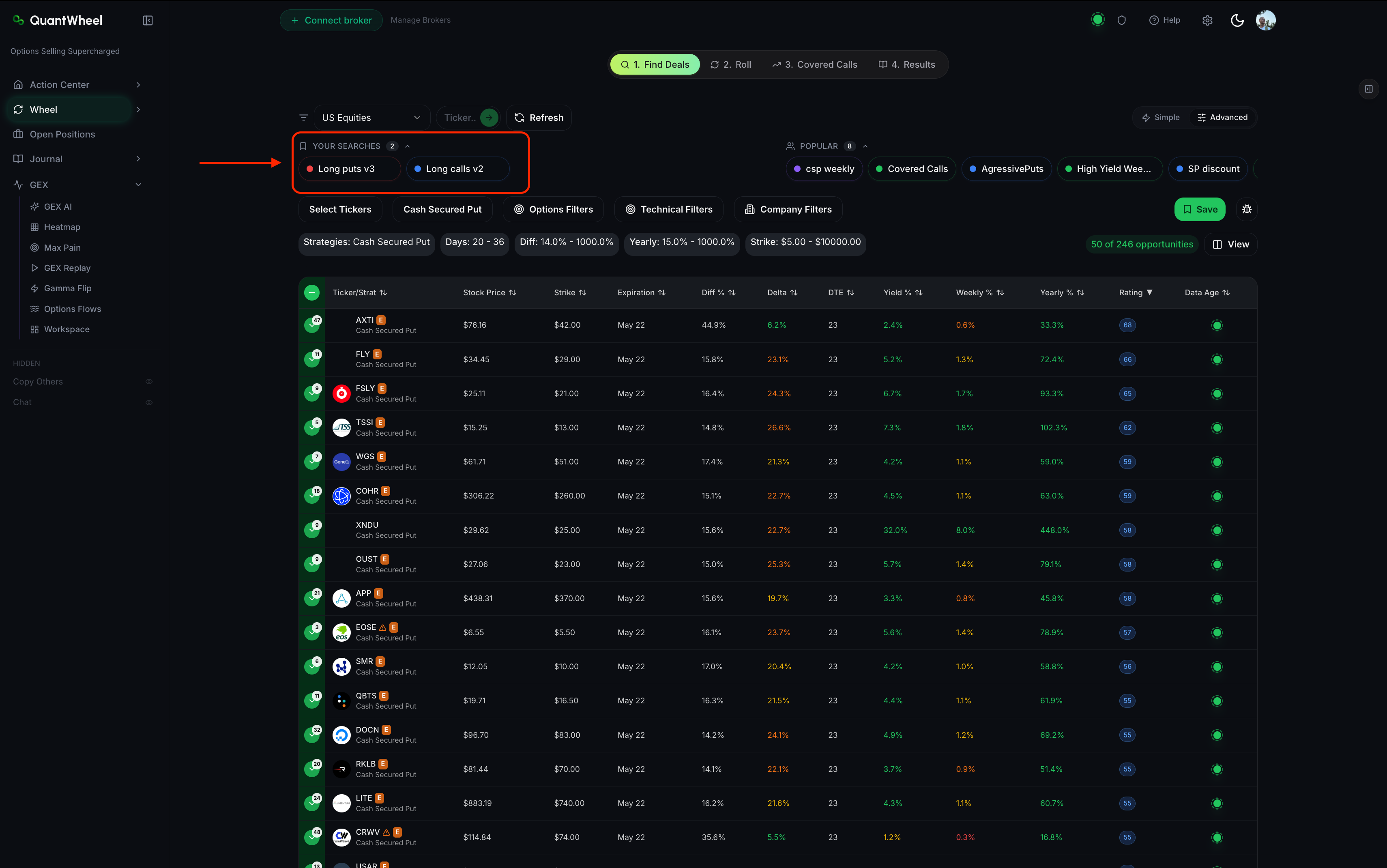
2. Load a saved filter
Click the saved filter's name in Your Searches and that's it.
3. Rename or delete a saved filter
Hover over a saved filter in Your Searches and click "x".
Renaming is useful when a filter set evolves - "Conservative CSP v1" becomes "Conservative CSP v2" when you've tightened thresholds. Delete the old filter by clicking "x", your filter values will remain. Then just click "save" again on the right hand side and name your filters again.
4. Use a Popular filter
Popular filters are community-created. Click one to load its settings into the filter panel. You can apply it as-is to screen, or modify the settings and save as your own filter. Popular filters are read-only - your modifications create a new filter set in Your Searches rather than overwriting the community version.
How to build a filter library
Most wheel traders end up with 3 to 6 saved filters covering different scenarios:
- A conservative default - tight Delta, moderate DTE, strong fundamentals, healthy technical trend. The everyday screen.
- A "take more risk" variant - wider Delta, higher Yield floor, looser fundamentals. For when premium is scarce and you need to accept more assignment risk.
- A covered-calls screen - Strategy = Covered Calls, tuned for finding high-Yield calls above Break Even on positions you already hold.
- A watchlist-narrow screen - applied to a specific watchlist of tickers you want to own. Uses more permissive filters because you've already pre-selected the stocks.
- A contrarian / oversold screen - low RSI, negative Momentum, demanding fundamentals (high F-Score, strong Z-Score). Finds beaten-down quality names.
Saving these once lets you cycle through them in under a minute per session instead of rebuilding from scratch.
Common issues
My saved filters vanished after a browser refresh.
Saved filters persist on your QuantWheel account - not the browser. If they've disappeared after refresh, check that you're logged into the same account. If they're actually missing (not a login mixup), that's a bug worth reporting via the Help link in the top bar.
Can I export or back up my saved filters?
Not through the UI today. If you've built a filter set you'd hate to lose, take a screenshot of the filter panel so you can reconstruct it manually if needed.
Can I share a filter set with a specific person without making it Popular?
Not directly. Popular filters are all-public. For private sharing, screenshot the filter panel or type out the values.
How do I know which Popular filters are worth trying?
Popular is surfaced by the community; there's no quality ranking. Treat Popular filters as starting points rather than authoritative setups. Load one, scan the results, adjust what doesn't match your strategy, then save your modified version.
Can I set a saved filter as my default when I open Find Deals?
Not today. Your Preferences (Target Yearly Yield, Risk Profile, Max Collateral) seed default filter values, but selecting a specific saved filter on load isn't a setting. Each Find Deals session starts with the Preferences defaults.
Related
- How to use the Find Deals screener
- How to filter by options metrics
- How to filter by technical indicators
- How to filter by company fundamentals
Risk disclaimer: Options trading involves substantial risk of loss and is not suitable for all investors. Past performance does not guarantee future results. This content is for educational purposes only and is not investment advice.