
Rolling a position means closing an existing option contract and opening a new one at a different strike, a later expiration, or both — usually for a net credit. The Roll tab is the second tab of the Wheel workflow. It lists your open positions that may need rolling, and for each one it surfaces candidate rolls ranked by net premium and favorability.
Rolling is how wheel traders avoid or delay assignment when a position moves against them. It also compounds premium over time — each roll collects additional credit.
Before you start
Required:
- QuantWheel PRO, QuantWheel GEX, or an active $1 trial.
- At least one connected broker with open short option positions (CSPs or CCs).
- Basic familiarity with the wheel strategy. See Understanding the wheel strategy if you need background.
Time to complete: 10 minutes
What's on the screen
1. The Positions to Roll list
At the top, the list shows every open short option position in your connected accounts. Each row represents one position.
Filter controls above the list:
- ITM / OTM / ALL — restrict to in-the-money, out-of-the-money, or all positions
- PUT / CALL / ALL — restrict to put positions, call positions, or both
- SHORT / LONG / ALL — restrict by direction (default is short, the wheel side)
Columns in the list:
- Ticker — the underlying stock
- Contracts — number of contracts open
- Price — current underlying price
- Collateral — cash tied up by this position
- DTE — days until the option expires
- ITM % — how far in-the-money (negative means out-of-the-money)
- P&L — unrealized profit or loss on this contract
- RVIV — realized volatility over implied volatility ratio
- Daily — daily P&L change
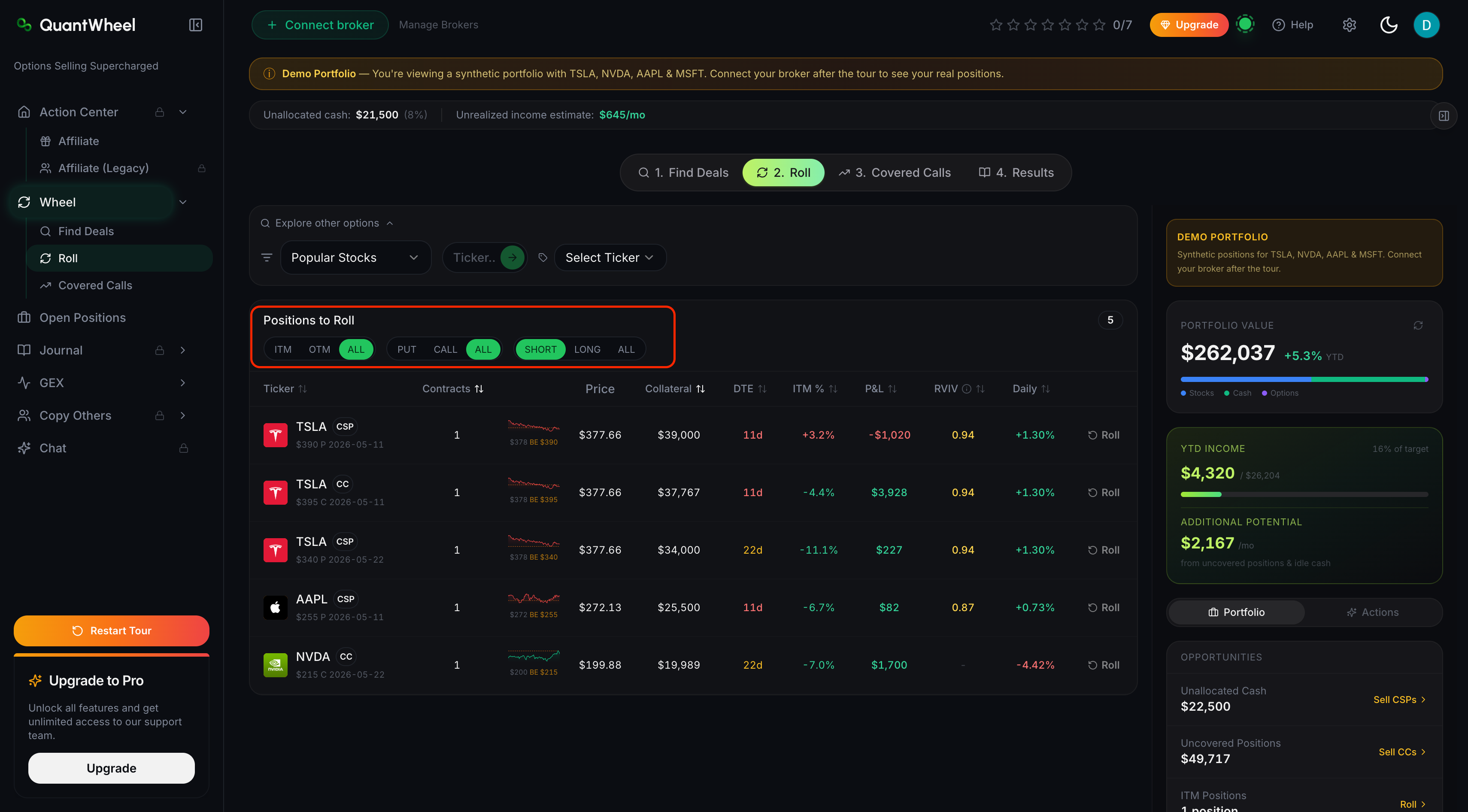
Not every position on this list needs to be rolled. The list is showing everything that's eligible; the decision to roll is yours. Positions that are comfortably out of the money with low DTE often just close at expiration — no roll needed.
2. Expanding a row
Click the Roll action button on any row. The row expands to show two things.
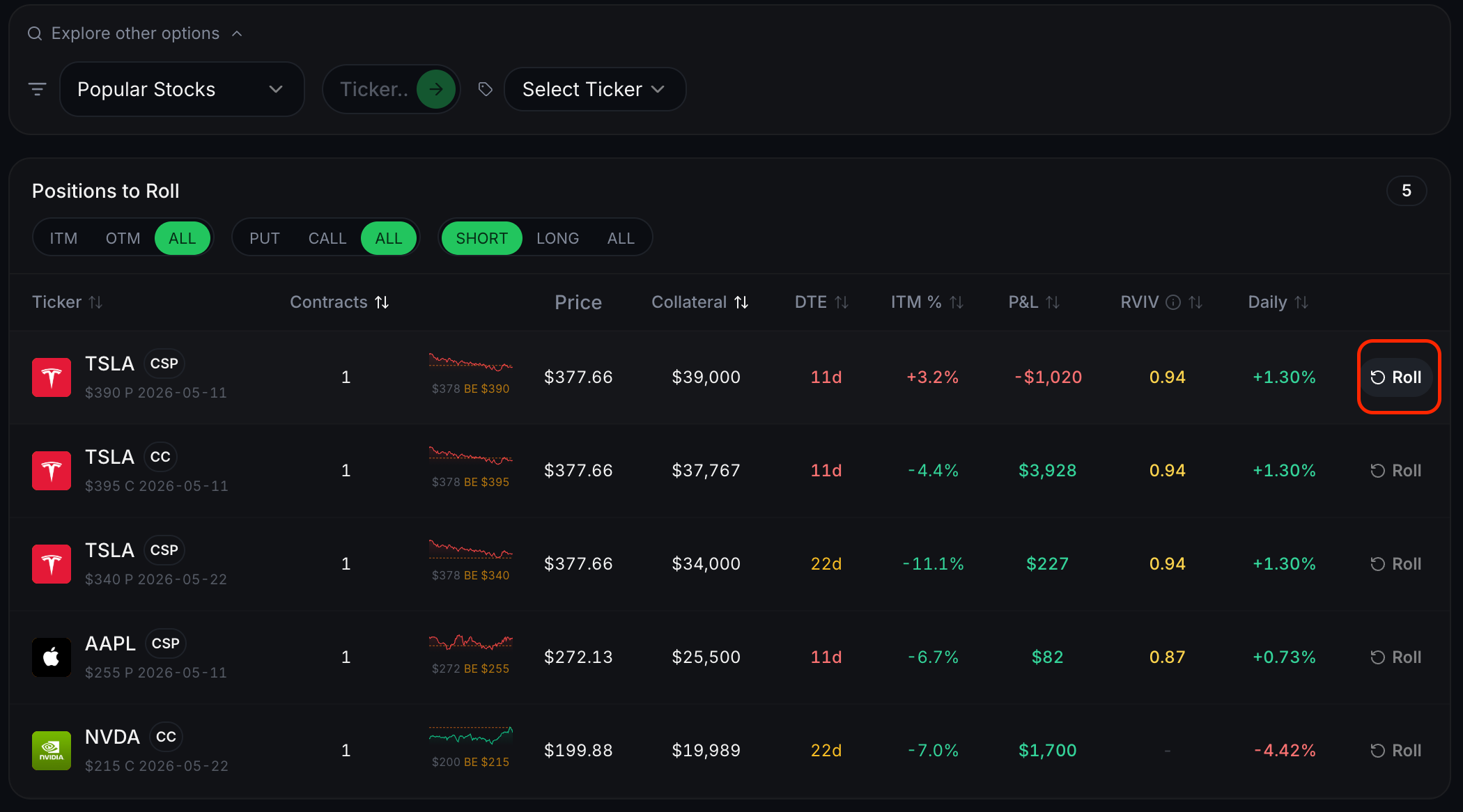
First, the current position is re-identified with a "Select Current CALL/PUT Option Position to Roll" header, confirming what you're rolling from.
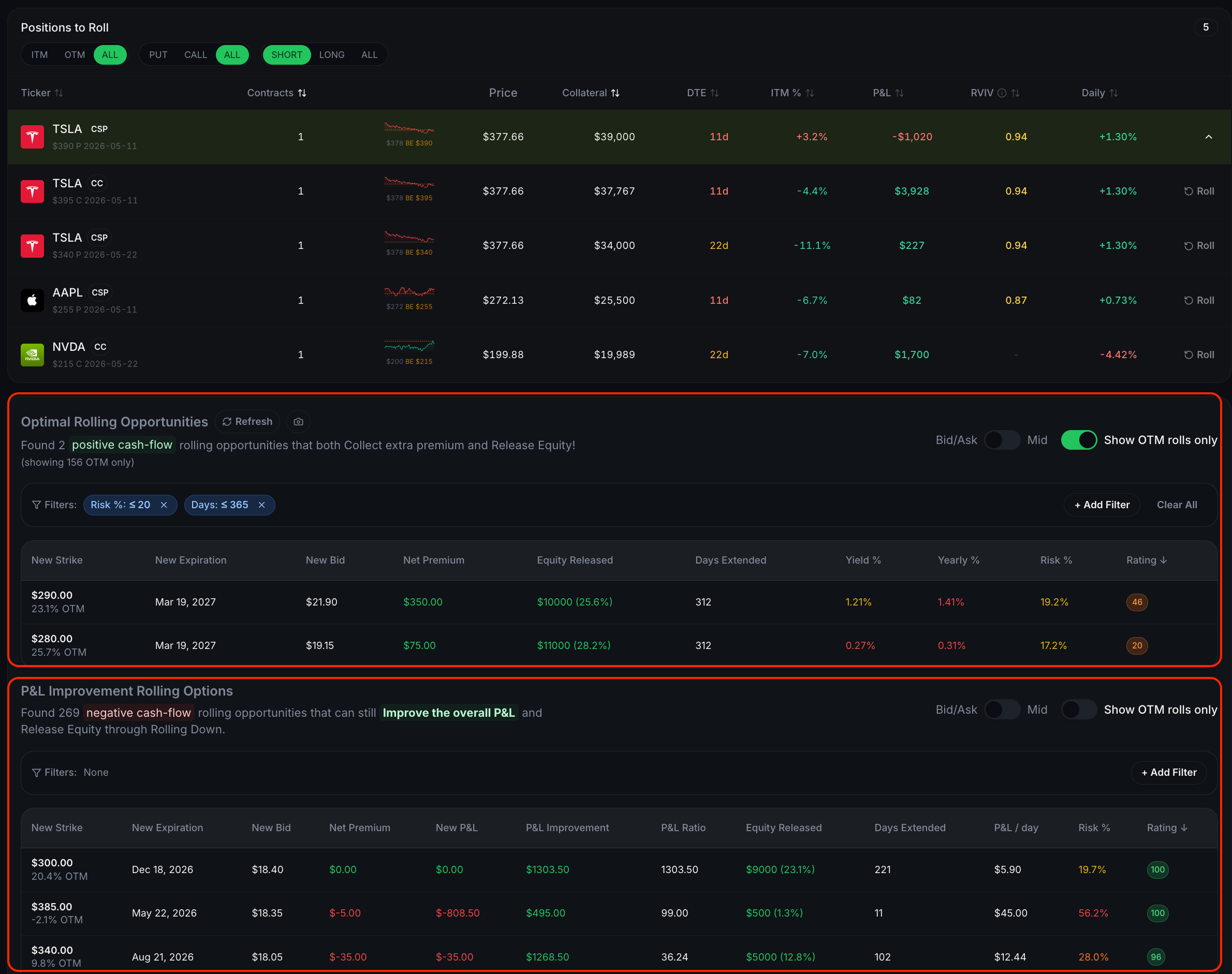
Second, an Optimal Rolling Opportunities section appears. It reads "Found N positive cash-flow rolling opportunities" — N is the count of replacement contracts that would generate a net credit (premium collected on the new contract exceeds cost of closing the old one).
3. Reading the rolling candidates
Each candidate row in Optimal Rolling Opportunities shows a proposed new contract:
- New Strike — strike of the replacement option
- New Expiration — when the replacement expires
- New Bid — current bid for the new contract
- Net Premium — what you'd net: premium on the new contract minus cost to close the old one. Positive is a credit to you.
- Upside Increase — how much more favorable the new strike is vs. the old one
- Days Extended — how much longer the position runs after rolling
- Yield % — the roll's yield
- Yearly % — the yield annualized
- Risk % — an assessment of the roll's risk relative to the position
- Rating — the composite opportunity score, same methodology as the Find Deals screener
Controls above the candidate list:
- Bid / Ask / Mid toggle — which side of the spread to price the candidates against. Mid is typical for evaluation; Bid is conservative for execution.
- "Show OTM rolls only" toggle — hide candidates that would move the position further into the money.
4. Picking a roll
Sort candidates by Rating to see QuantWheel's top-ranked rolls, or by Net Premium to prioritize the best credit. Read the Upside Increase to see how far out of the money the new strike is versus the old one — that's the main thing rolling buys you beyond extra premium.
A good roll typically has:
- Positive Net Premium (you're being paid to roll)
- Upside Increase that moves the strike away from current price
- Reasonable Days Extended (30–45 DTE is common for wheel rolls)
- A Rating of 70+
5. Executing the roll
QuantWheel surfaces rolls but doesn't place them automatically. After you pick a candidate, execute the roll in your broker's trading interface, then let QuantWheel's auto-journal track both legs (the close of the old contract and the open of the new one).
After execution, the position typically re-appears in the Open Positions screen under its new strike and expiration. If it was part of a multi-leg strategy, the Open Chains section shows the full transaction history including the roll — see How to track open chains when that page publishes.
Common issues
The Optimal Rolling Opportunities section is empty.
"Found 0 positive cash-flow rolling opportunities" means every candidate replacement contract would cost more to roll into than it pays in premium. This happens most often when the underlying has moved sharply against your short position and implied volatility hasn't risen proportionally. Options: wait, roll anyway at a net debit (not shown in this list), or take assignment and transition to the next wheel stage.
A roll candidate shows a high Rating but a low Net Premium.
Rating and Net Premium measure different things. Rating is the overall quality of the roll; Net Premium is just the immediate cash credit. A high-Rating, low-Net-Premium roll might extend the position further, move the strike further out of the money, or both — the Rating is crediting those benefits even when the immediate cash is small.
Should I always roll before expiration?
No. If a position is safely out of the money with low DTE, letting it expire collects the full premium with no transaction cost. Rolling is for positions going in the money or for harvesting additional premium before time decay completes. See Understanding the wheel strategy for context on when each stage of the wheel applies.
What does RVIV mean in the position list?
RVIV is the ratio of realized volatility to implied volatility. A ratio above 1.0 means the stock has been more volatile than options priced in; below 1.0 means less volatile than priced. High RVIV often correlates with positions that got into trouble.
My broker isn't listed, but I want to track rolls manually.
CSV Import via Settings → CSV Import can ingest historical trades including rolls. Real-time rolling-candidate screening requires a connected broker.
Related
- How to sell covered calls on your stock positions
- How to review your wheel results
- Understanding the wheel strategy
Risk disclaimer: Options trading involves substantial risk of loss and is not suitable for all investors. Past performance does not guarantee future results. This content is for educational purposes only and is not investment advice.