
Your Account page holds your personal info and integrations — email, password, display name, and connected third-party services like Discord. This is where you update profile info, change passwords, or manage integrations from a single place.
Before you start
Required:
- An active QuantWheel account.
Time to complete: 3 minutes
Where to find it
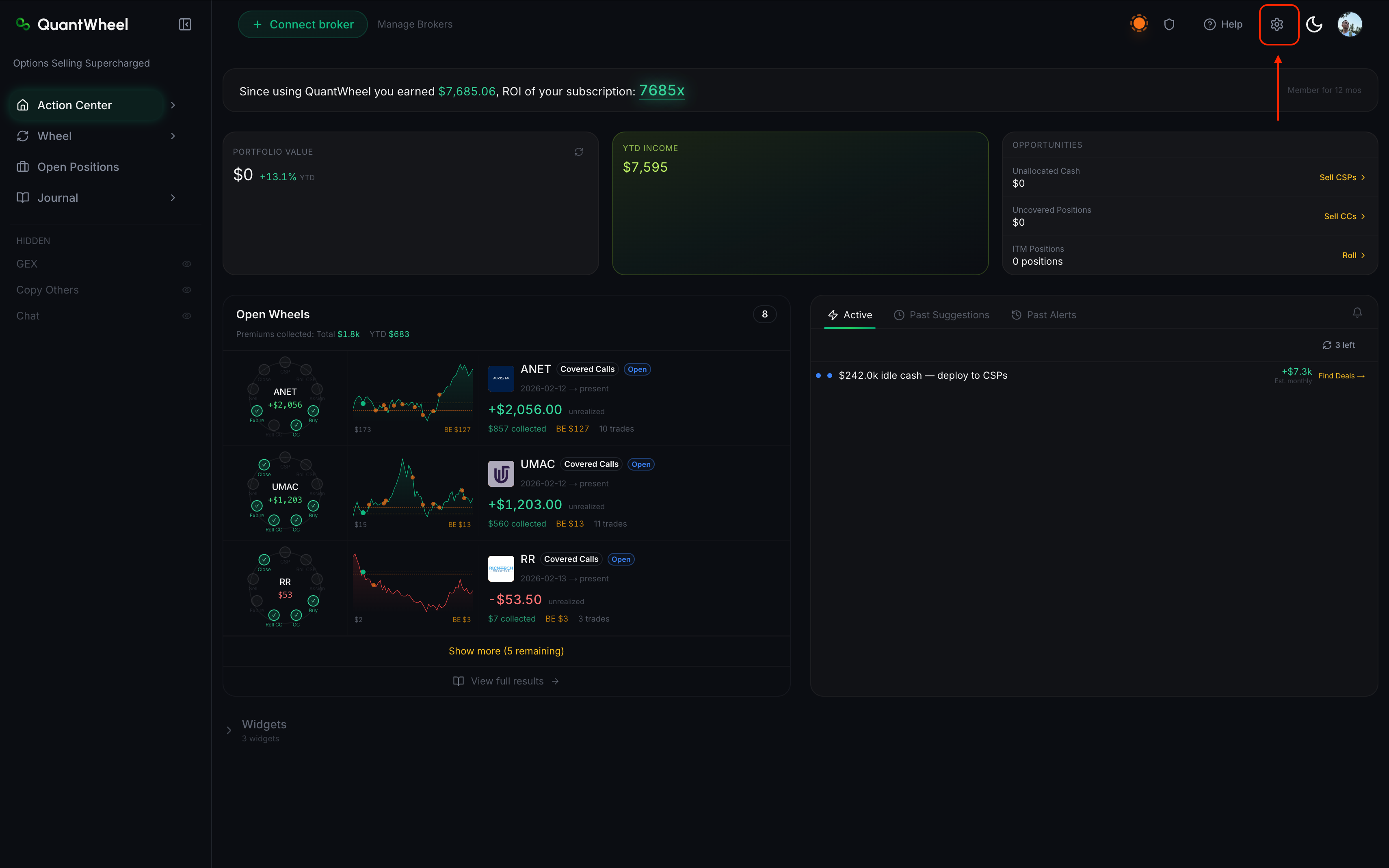
Click the gear icon in the top bar → Settings → Account.
Common tasks
Change your email
Your email is used for billing notifications, alert delivery, and account recovery. To update it:
- Click the edit icon next to the Email field
- Enter the new email address
- Enter your current password to confirm the change
- Check the new email inbox for a verification link; click it to complete
Until you verify the new email, alerts still deliver to the old address. Verification locks in the change.
Change your password
Click Change Password. Enter your current password and the new one. The new password takes effect immediately — you stay logged in on your current session, but any other active sessions are signed out.
Pick a strong password — QuantWheel stores your financial data and has access to your broker connections. Don't reuse a password from another service.
Update your display name
Your display name appears on shared features like Copy Trading (if you operate as a featured trader or as a Virtual Hedge Fund) and in any in-app messaging. It's not used for login.
Edit the display name field, save. Takes effect immediately.
Manage Integrations
Below the profile fields, the Integrations section lists connected third-party services:
- Discord — for alert delivery. See How to set up Discord alerts for initial setup.
- Payment provider — managed from Billing, but connection status shows here.
- Other integrations may appear as QuantWheel adds them.
Each integration has a disconnect button if you want to revoke its access.
Delete your account
At the bottom of the Account page, a Delete Account option triggers permanent account removal.
Deleting is permanent and immediate:
- Your subscription is canceled
- All your journal data, watchlists, saved filters, and alerts are deleted
- Your display name is released (someone else can claim it)
Deleted accounts can't be recovered. If you want to pause rather than permanently leave, cancel your subscription instead — you keep Sandbox access and can reactivate later.
Common issues
I forgot my password and I'm locked out.
Use the "Forgot Password" link on the login page. A reset email is sent to the email on your account. If you no longer have access to that email address, contact support via the help link with your account details.
I'm not receiving the email verification for a new address.
Check your spam folder. If it's not there within 10 minutes, confirm the email address you entered was correct (typos are common). Try updating again, carefully.
Can I have two accounts under one email?
No. Each email can only be on one QuantWheel account. If you need multiple accounts (e.g., for paper-trading vs. live, or for different business entities), use different emails for each.
What happens to my broker connections if I change my email?
Broker connections are tied to your QuantWheel account, not to your email address. Changing your email doesn't affect them.
I want to export my data before deleting my account.
The Trades tab (Journal → Trades) has per-row data that can be filtered and used for reference. There's no single-button export today. If you plan to delete and want a backup, take screenshots of key pages (Per-Ticker, Profit View, Transactions) before deletion.