
Your QuantWheel subscription is managed from Settings → Billing. From there you can switch between plan tiers, change billing cadence, update your payment method, view invoices, or cancel. This page walks through each action.
Before you start
Required:
- An active QuantWheel subscription (paid or in a $1 trial). If you're on the free Sandbox and want to start a subscription, see How to start your $1 7-day trial instead.
Time to complete: 3 minutes
Where to find it
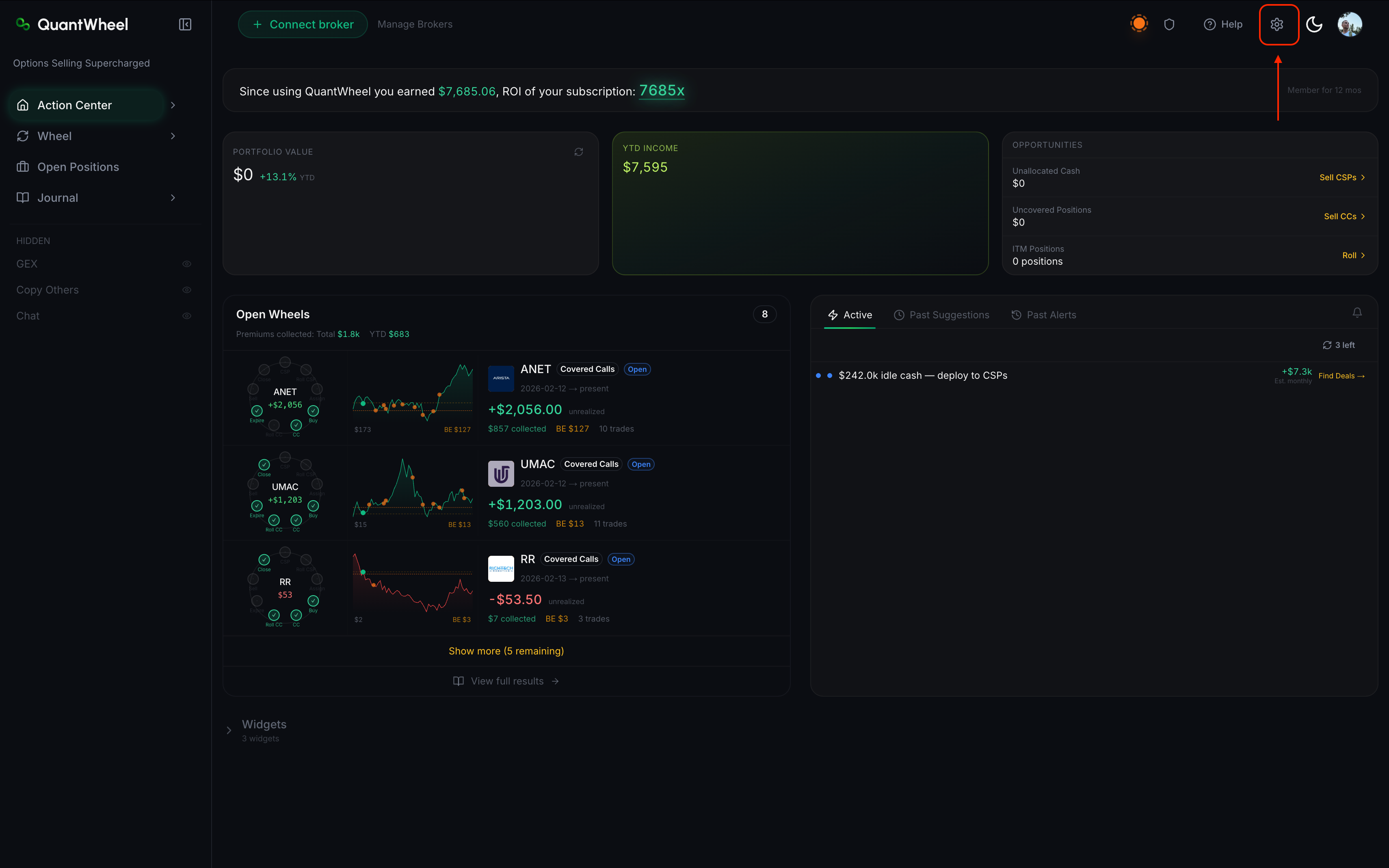
Click the gear icon in the top bar → Settings → Billing.
The Billing page shows your current plan, renewal date, payment method, and invoice history.
Common tasks
Switch between QuantWheel GEX and PRO
Under your current plan display, a Change Plan button opens a plan selector. Pick the plan you want to switch to.
GEX → PRO upgrade takes effect immediately. You're prorated for the remainder of your current billing period - QuantWheel charges you the difference between GEX and PRO for the days remaining.
PRO → GEX downgrade also takes effect immediately, but the payment handling differs. You typically don't get a refund for the prorated difference; instead, the next renewal charges you the GEX rate rather than PRO.
Switch between monthly and yearly billing
The same plan-selector flow lets you switch cadence. Yearly saves about 30% over monthly.
Monthly → Yearly: you're charged the yearly rate minus a credit for any remaining days on your current month.
Yearly → Monthly: takes effect at the end of your current yearly period, not immediately. You keep paid-for time until then.
Update your payment method
Click Update Payment Method on the Billing page. Enter new card details. The new card is used for the next renewal.
If you need to update the card urgently (e.g., your current card is about to expire), do it at least a few days before the renewal date - QuantWheel charges at the scheduled renewal time, and a failed charge can temporarily restrict access until the card is updated.
View invoices
A Billing History section lists every charge QuantWheel has made on your account. Each invoice shows the amount, date, plan, and payment status. Click an invoice to download it as a PDF - useful for expense reports or tax records.
Cancel your subscription
Click Cancel Subscription (sometimes labeled "Manage Subscription" with cancel inside). A confirmation dialog explains what happens:
- You keep access through the end of your current billing period
- No further charges after the current period ends
- Your account downgrades to Sandbox when the period ends; your historical data stays intact
- You can reactivate later by starting a new subscription
Cancellation is permanent for the current billing period's auto-renewal but doesn't lock you out of re-subscribing.
Common issues
My card was charged but the plan still shows the old tier.
Rare sync delay between the payment system and account state. If the charge went through but your plan hasn't updated within 10 minutes, log out and log back in to refresh entitlements. If that doesn't resolve, report via the Help link with your most recent invoice.
I canceled but I'm still getting charged.
Check your next-renewal date on the Billing page. Cancellation takes effect at the end of the billing period, not immediately - so one more charge may have gone through before cancellation registered. If you see a charge after the next-renewal date, that's an error; report it.
My yearly subscription renewed without me expecting it.
Yearly subscriptions auto-renew unless you cancel before the renewal date. Set a calendar reminder for a week before your yearly renewal so you can make the decision consciously.
Can I pause my subscription instead of canceling?
Not directly - there's no pause option. The closest analog is canceling and re-subscribing later; your historical data stays in the account either way.
I was charged twice for the same period.
Possible if a failed charge retried after you updated your payment method. Check the Billing History - if you see two identical charges, the duplicate gets refunded automatically within a few business days. If it doesn't, report via Help.
Can I change the email for billing notifications?
The billing email is the email on your QuantWheel account. To change it, update your account profile - see How to update your account profile.