
Operating as a Virtual Hedge Fund means making your trading activity visible to other QuantWheel users. Your trades appear in the Featured Traders grid (or a similar browse surface), followers can subscribe to your signals, and your performance metrics are published. You're on the other side of the Copy Trading relationship - the trader being followed rather than the one following.
This page walks through the setup flow and what to expect once you're live.
Before you start
Required:
- QuantWheel PRO.
- An active connected broker. Your Virtual Hedge Fund derives its signals from real trades in a connected broker account, not from paper trading.
- Familiarity with the educational-only framing. See How copy trading works on QuantWheel.
- Clear understanding of the responsibilities that come with being publicly visible - see the section below.
Time to complete: 15 minutes for initial setup; ongoing maintenance as your positions change.
Responsibilities of operating as a Virtual Hedge Fund
Before the mechanical setup steps, understand what you're taking on:
You're providing educational content, not investment advice. Every trade you share is an educational signal, not a recommendation. The framing matters for regulatory reasons - making specific "you should buy this" calls crosses into investment advisory territory, which has licensing requirements.
Your performance is public. Followers see your trailing returns, drawdowns, win rate, and recent trades. The good periods are visible; the bad periods are visible too. Being comfortable with this transparency is a precondition.
You can't hide losses. QuantWheel surfaces all connected-broker activity, not just the winners. If you have a bad week, your subscribers see it.
You commit to staying active. If you stop trading or your signals stop appearing for long periods, subscribers expect an explanation (or they unsubscribe). Virtual Hedge Fund status implies ongoing activity.
You agree to QuantWheel's content policies. Rationale text you write on trades must not mislead, must not guarantee returns, must not discourage independent evaluation. Read the terms before you set up.
If any of the above is a deal-breaker, Virtual Hedge Fund may not be for you. Copy Trading as a follower (subscribing to others) has much lighter commitments.
Steps
1. Open the Virtual Hedge Fund setup
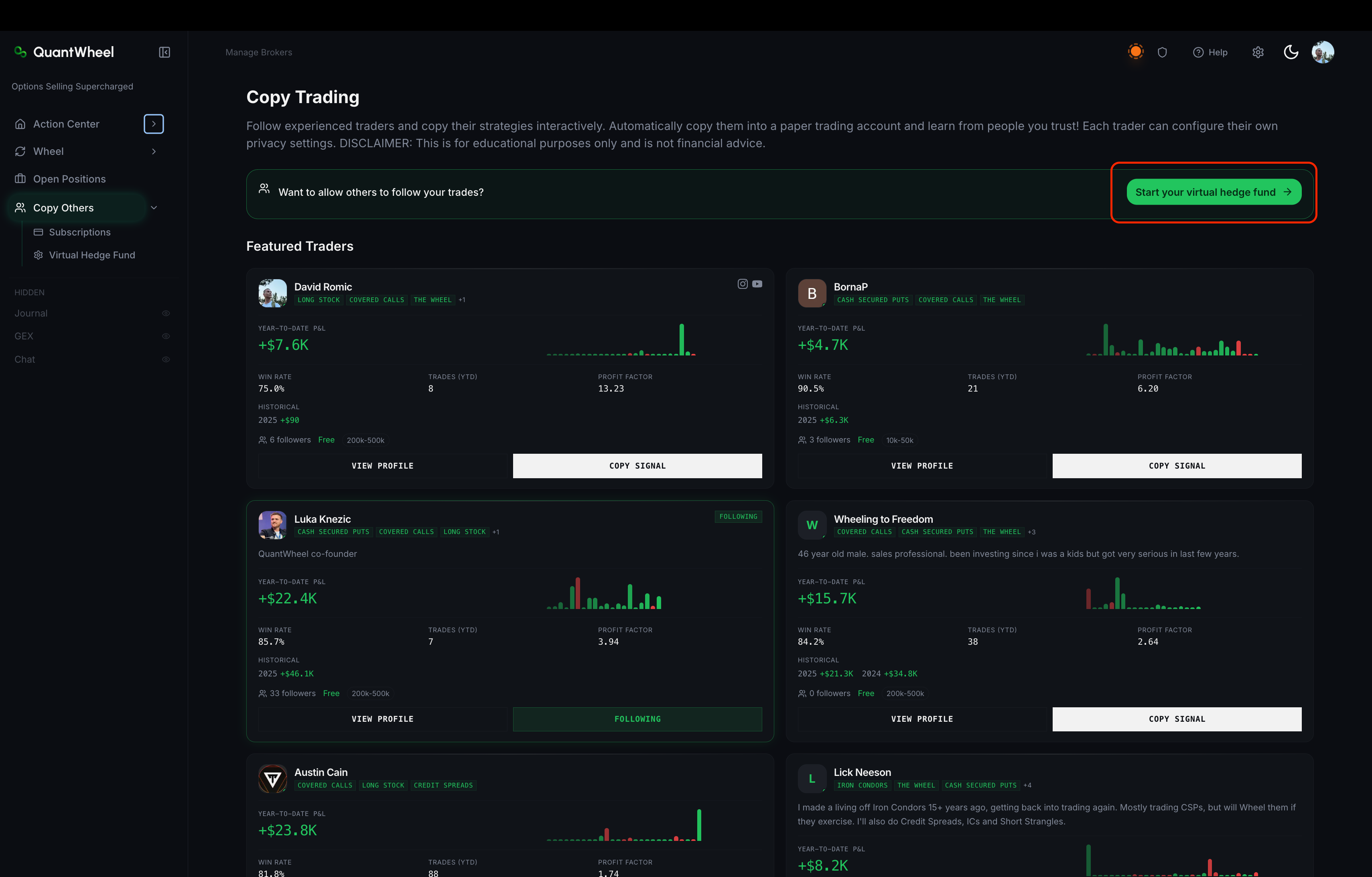
In the sidebar on your left hand side, click Copy Others. Look for a Become a Virtual Hedge Fund button or a setup link - typically prominent on the Featured Traders grid.
2. Configure your profile
The setup flow starts with your public profile. Fill in:
- Display name - what appears in the Featured Traders grid. Keep it professional; it's how subscribers find you.
- Bio - a few paragraphs on your background, approach, and what followers can expect.
- Account size range - helps followers understand your trading scale without seeing your exact cash balance.
- Trading strategies - tags such as Cash Secured Puts, The Wheel, Covered Calls, Credit Spreads, Iron Condors, Long Stock, or Other.
- Social links and landing-page theme - optional fields for the public trader landing page.
The profile is visible to all QuantWheel users once you go live. You can edit it afterward.
3. Configure performance display
Choose what trading activity and performance window are visible:
- Tracked accounts - select which connected broker accounts feed copy-trading alerts. If none are selected, all connected accounts are tracked.
- Publish New Trades - controls whether new trades are shared with followers.
- Show Quantities - controls whether contract/share counts are shown.
- Show Fill Prices - controls whether execution prices are shown.
- Show Last X Days of Trades - controls how much recent trade history appears.
- Performance Period (Days) - controls the window used for displayed performance statistics.
QuantWheel keeps the setup educational and transparent, but the exact visible details are controlled by the settings above.
4. Configure subscription terms
Decide how followers can subscribe to your signals:
- Free subscriptions - anyone can subscribe, no payment
- Paid monthly subscriptions - connect Stripe, set a monthly price, and enable paid subscriptions
5. Configure signal delivery
How do your trades turn into signals for subscribers?
- Auto from broker sync - every trade that syncs from your broker becomes a signal. Fast, low effort, but every trade is exposed.
- Tracked account filtering - choose which connected accounts should publish. If none are selected, all accounts are tracked.
- Privacy toggles - decide whether quantities and fill prices are included.
Manual approval, delayed publication, and AI-written rationale prompts are not part of the current setup flow.
6. Review and save
The final step shows your full profile and settings as subscribers will see them. Verify:
- Display name reads correctly
- Bio doesn't contain typos or unintended claims
- Performance metrics are what you intended to show
- Subscription pricing is correct
Then save your configuration. If Active and Public Profile are enabled, your profile can appear in the Featured Traders grid.
Maintenance after launch
Post meaningful commentary
On paid subscriptions especially, subscribers may expect some context on your trades. If the current product does not include commentary fields in the signal flow, use your public bio and linked channels to explain your general process.
Monitor subscriber feedback
Subscriber count and unsubscribe patterns tell you whether your content is landing. A spike in unsubscribes after a specific trade or period suggests subscribers did not like the outcome or the framing.
Respond to inquiries
If you link external social channels on your profile, respond thoughtfully to questions there. That builds a stronger follower base than staying silent.
Regularly audit your own disclosures
Markets change; your strategy may drift. If your strategy description says "conservative wheel" but you've been selling 50-delta CSPs, your disclosure no longer matches your activity. Subscribers can legally cite this as misleading.
📸 SCREENSHOT: start-virtual-hedge-fund-step-4.png
Common issues
I set up but I'm not appearing in the Featured Traders grid.
Check that Active and Public Profile are both enabled, and confirm your trader configuration saved successfully. If it still does not appear, report it through Help.
A subscriber is asking for specific investment advice.
Don't give it. Respond with educational framing - "here's why I made the trade I made," not "you should do X." Specific recommendations cross into advisory territory.
I made a losing trade and subscribers are unhappy.
Losses are part of trading and of a publicly-visible track record. Own the outcome honestly; don't rewrite the rationale post-hoc. Subscribers respect traders who take losses in stride more than those who claim every trade was a good call.
Can I stop being a Virtual Hedge Fund?
Yes. In Trader Configuration, turn off Active or Public Profile to stop appearing in the browse surface. For paid subscriptions, handle any subscriber or billing cleanup before you fully step away.
Can my followers see which broker I use?
Typically no - subscribers see your trades and signals, not your broker or account details. Confirm specific disclosure settings during setup.
Related
- How copy trading works on QuantWheel
- How to follow a featured trader
- How to connect your first broker and see your positions
Risk disclaimer: Options trading involves substantial risk of loss and is not suitable for all investors. Past performance does not guarantee future results. This content is for educational purposes only and is not investment advice.