
Connecting Vanguard takes about 90 seconds. You click Connect on Vanguard's card in QuantWheel, log in on Vanguard's own website, and approve read-only access. QuantWheel starts syncing your positions, transactions, and cost basis automatically.
Before you start
Required:
- QuantWheel PRO, QuantWheel GEX, or an active $1 trial.
- A Vanguard account with online access credentials.
- A web browser (the connection flow doesn't work in the QuantWheel mobile app yet).
Time to complete: 90 seconds
Steps
- In QuantWheel, go to Settings → Broker Integration (or click Manage Brokers in the top bar).
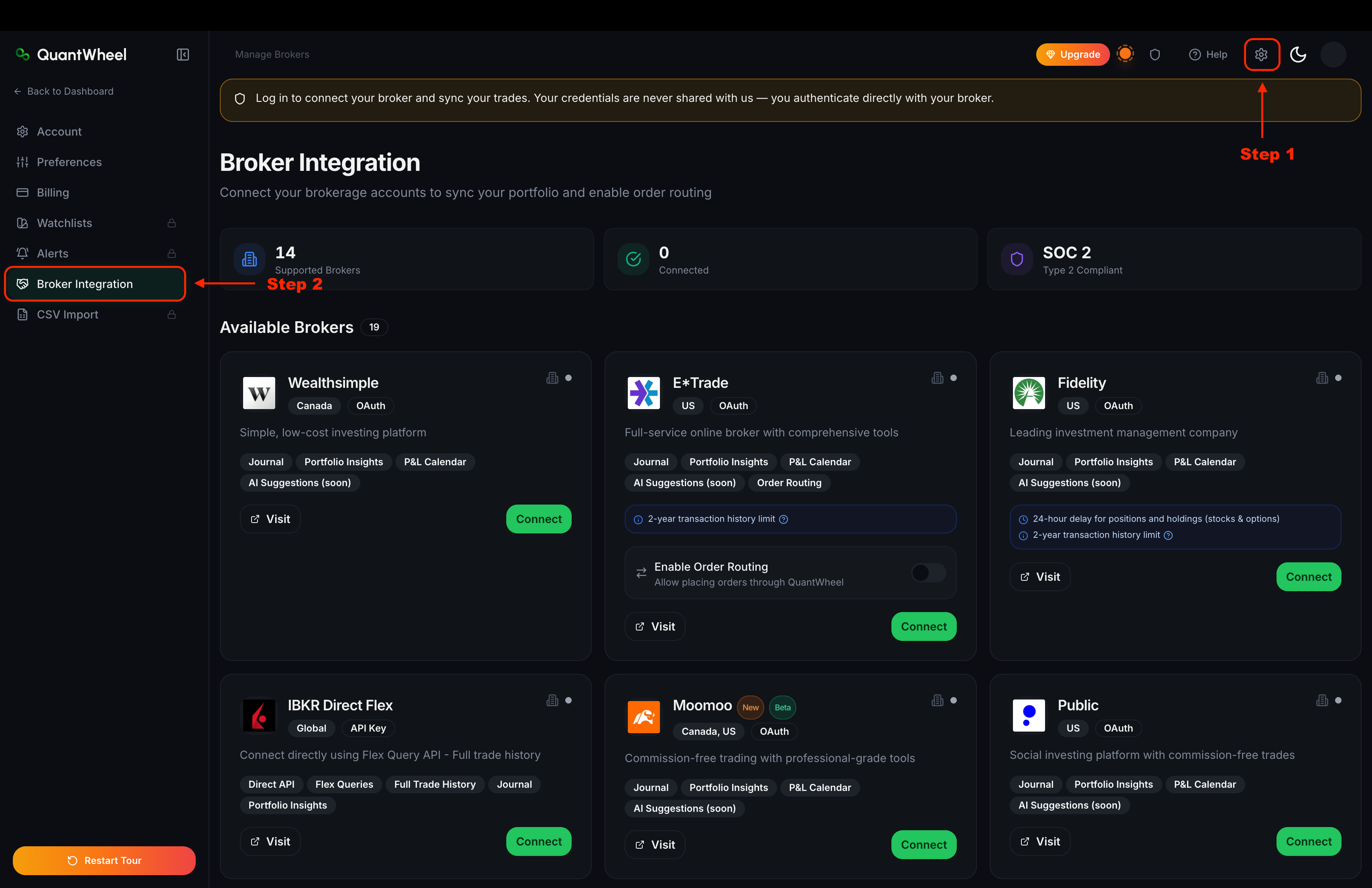
Find the Vanguard card in the list of supported brokers and click Connect.
An authentication modal appears showing the Vanguard logo and the next three steps: directed to Vanguard, log in, and confirm data sharing. Click Continue.
You're redirected to Vanguard's own login page. Enter your Vanguard username and password. If you use two-factor authentication on your Vanguard account, complete it here.
Vanguard displays a consent screen listing the read-only access QuantWheel is requesting - positions, transactions, and balances. Approve the request.
You're returned to the QuantWheel Broker Integration page. Vanguard now shows as Connected with Account is syncing status. Sync may take up to 15 minutes and future trade positions may also have a update delay of up to 24 hours.
Open Open Positions and the Journal to confirm your positions and trades are appearing.
Common issues
Nothing appears in Open Positions after I connect.
Initial sync takes a few minutes for most brokers. If more time passes and positions still don't appear, see Broker sync failed.
I got an error on Vanguard's login page.
The login step runs on Vanguard's own website, not QuantWheel. If Vanguard returns an error (wrong password, account locked, 2FA failure), resolve it there first. Once you can log in to Vanguard directly, retry the QuantWheel connection.
Can I connect multiple Vanguard accounts?
Yes. After the first account connects, click Connect on Vanguard's card again to add another. Each account is tracked separately; Open Positions and the Journal show the combined view.
Is QuantWheel able to place trades on my Vanguard account?
No. Connecting Vanguard grants read-only access to positions, transactions, and balances. QuantWheel cannot place trades.
How do I disconnect Vanguard?
Go to Settings → Broker Integration. On the Vanguard card, click the disconnect option. Disconnecting stops sync immediately; historical imported data stays in the journal unless you delete it separately.
Do I have to re-authenticate after some period?
The OAuth token Vanguard issued stays valid until you revoke it from Vanguard's side or disconnect from QuantWheel's side. If Vanguard force-expires the token (this can happen after a password change or security event), you'll see a re-connection prompt in QuantWheel.