
QW Intelligence is QuantWheel's AI chat assistant, accessed from the Chat item in the sidebar. Instead of clicking through filters and screens, you ask questions in natural language: "What are good cash-secured put candidates on tech stocks right now?" or "Which of my open positions has the most downside risk this week?" QW Intelligence pulls from live market data and - on PRO - from your own portfolio to answer.
This page covers what QW Intelligence is, how to use it, and how it fits alongside the rest of the product.
Before you start
Required:
- QuantWheel PRO for signed-in use. The Sandbox lets you preview QW Intelligence before signing up.
- Willingness to treat AI answers as information to evaluate, not instructions to follow.
Time to complete: 5 minutes
What's on the screen
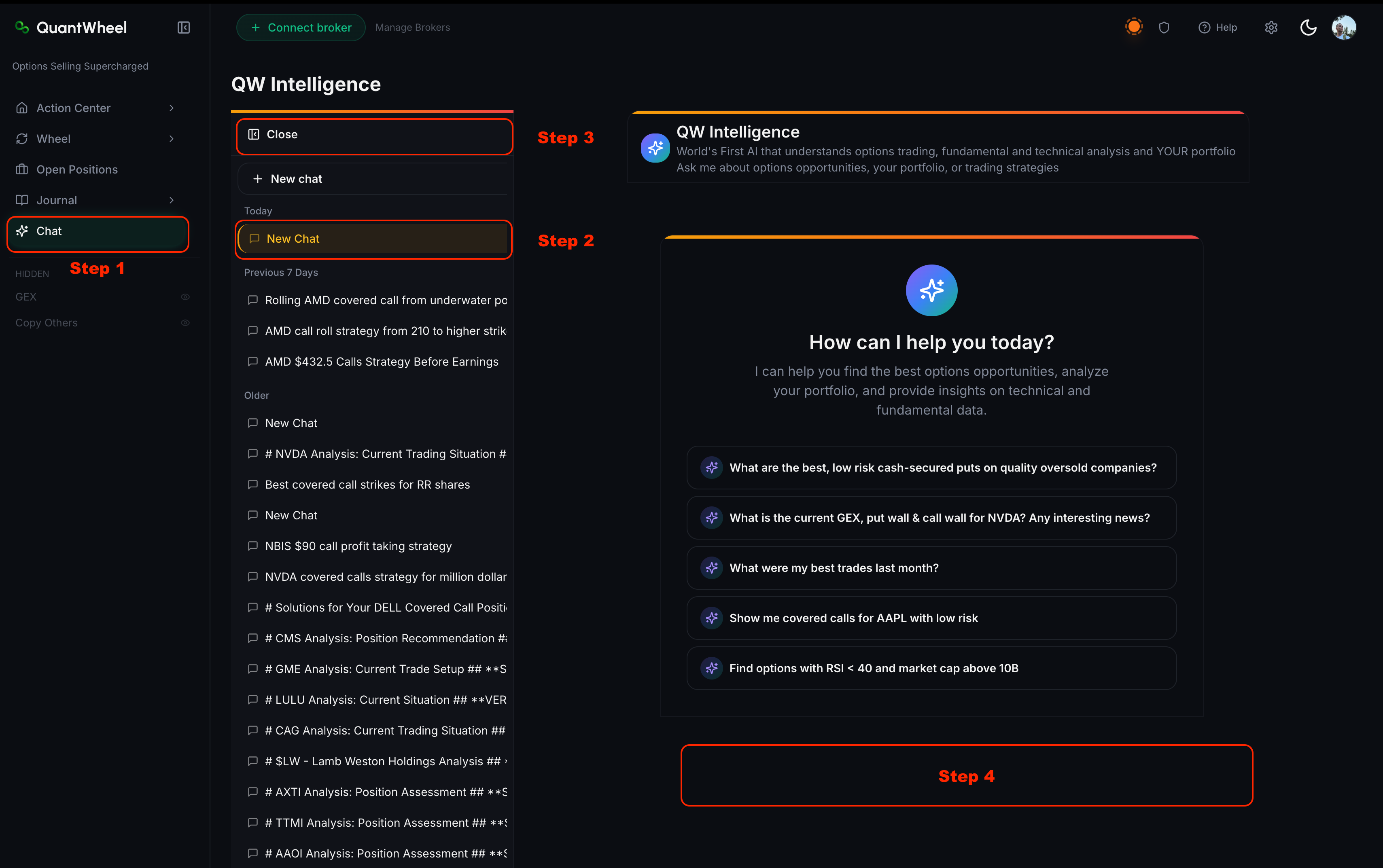
Open Chat in the sidebar. The QW Intelligence interface has three main areas:
1. The conversation list (left side)
Your past conversations. Each shows a title auto-generated from the conversation's first prompt and a timestamp. Click any conversation to resume it, or click New Chat to start fresh.
Conversations persist across sessions - you can pick up a thread from yesterday.
2. The main conversation pane (center)
Where the chat happens. Your prompts and QW Intelligence's responses appear here, newest at the bottom. Responses often include formatted elements - tables of option chains, lists of candidates, links into other QuantWheel tools.
3. The input box (bottom)
Where you type. Above the input, QuantWheel typically shows a few Suggested Prompts - pre-written examples you can click to get started. Useful when you're new to chat and not sure what to ask.
Steps
1. Start with a suggested prompt
Click one of the suggested prompts to send it as-is. This is the fastest way to see what QW Intelligence can do.
Common starting prompts might be:
- "What are today's best cash-secured put candidates on my watchlist?"
- "Explain the wheel strategy in 3 sentences."
- "What does high positive GEX on SPY mean?"
- "Summarize my positions."
Each produces a different kind of response - some are market-data queries, some are educational, some are portfolio-specific. Trying a few gives you a feel for the range.
2. Write your own prompt
Type directly into the input box. Natural language works; you don't need a specific syntax.
Good prompts have three qualities:
- Specific - "CSPs on large-cap tech" is more specific than "good CSPs"
- Constrained - "under $50 collateral," "over 30% IV rank," "within 45 days to expiration" narrow the response
- Clear on what output you want - "give me 5 candidates" is clearer than "show me some ideas"
Press Enter (or click Send) to submit.
3. Read the response critically
QW Intelligence responses typically have structure:
- A summary line - direct answer to your question in one sentence
- Supporting detail - tables, lists, or paragraphs expanding on the summary
- Linked tools - buttons or inline links to open the relevant QuantWheel screen (Find Deals with pre-set filters, the specific ticker's GEX AI view, etc.)
- Sources or assumptions - where relevant, QW Intelligence explains what data it used
Read responses critically. The response is a starting point, not a final answer. A suggested candidate from chat gets you something to evaluate; you still apply your own judgment before placing any trade.
4. Iterate
Ask follow-ups. QW Intelligence remembers the context within the conversation.
- "Why did you pick those three?"
- "Show me the same filter on oil stocks instead."
- "What's the downside case on the first one?"
- "Open Find Deals with those filters."
Iteration is often where chat becomes more useful than static screens - a single back-and-forth can surface trade candidates the screener alone wouldn't have found.
5. Open the linked tool
Most trade-candidate answers include a "Open in Find Deals" or similar button that takes you to the relevant QuantWheel screen with the conversation's filters pre-applied. From there, you can use the full screener - sort, filter more, dive into any candidate's detail view.
How QW Intelligence fits alongside the rest of the product
Chat is faster for exploration
When you have a vague idea - "I want to look for CSPs but I'm not sure on filters yet" - chat is faster than configuring the full screener. A one-sentence prompt gets you 5 candidates to consider.
Screener is better for precise, repeatable analysis
When you know exactly what you want - "run my saved 'conservative wheel' filter combination" - the Find Deals screener is more direct. Chat isn't a replacement; it's a different entry point.
Chat is great for explaining what you're looking at
"Why is the Rating on this CSP only 60?" or "Explain what this GEX reading means" produces educational responses that are often better than reading three articles.
Chat for portfolio questions is PRO-only
Queries that reference your positions, journal, or trading history ("What did I make last quarter?", "Which positions are underwater?") need your journal data, so they're a PRO feature. Sandbox preview is available for exploring the interface before you upgrade.
📸 SCREENSHOT: qw-intelligence-overview-step-4.png
Common issues
The response doesn't directly answer my question.
Usually the prompt was ambiguous. Try being more specific. "Good CSPs" could mean many things; "CSPs with over 30% annualized yield on large-cap tech, 30-45 DTE" is much easier for the AI to resolve into a useful response.
I'm on Sandbox and the response seems limited.
Sandbox chat is a preview, so some features are tier-gated:
- Portfolio queries require PRO
- Certain real-time data may be delayed on Sandbox vs. paid tiers
- Conversation history may have retention limits on Sandbox
The AI said something I know is wrong.
AI outputs aren't always right. QW Intelligence can misread data, make inference errors, or confidently state something incorrect. If a response contradicts what you can verify directly in the product, trust the direct product data.
Can I ask QW Intelligence to execute a trade?
No. QW Intelligence is informational and research-oriented. Trade execution happens in your broker, not through chat. QW Intelligence can help you form a candidate and open the right screen, but never places a trade.
Conversations are piling up - can I delete old ones?
Yes. Hover over a conversation in the sidebar list; a delete option appears. Deletion is permanent; conversations can't be recovered.
What data can QW Intelligence see?
On paid tiers with a connected broker: your positions, transaction history, journal data, watchlists, and real-time market data for supported tickers. QW Intelligence can't see your account credentials, broker login info, personal identity details, or anything outside your QuantWheel account.
Related
- How to ask QW Intelligence about options opportunities
- How to ask QW Intelligence about your portfolio
- What QW Intelligence can and can't do
Risk disclaimer: Options trading involves substantial risk of loss and is not suitable for all investors. Past performance does not guarantee future results. This content is for educational purposes only and is not investment advice.